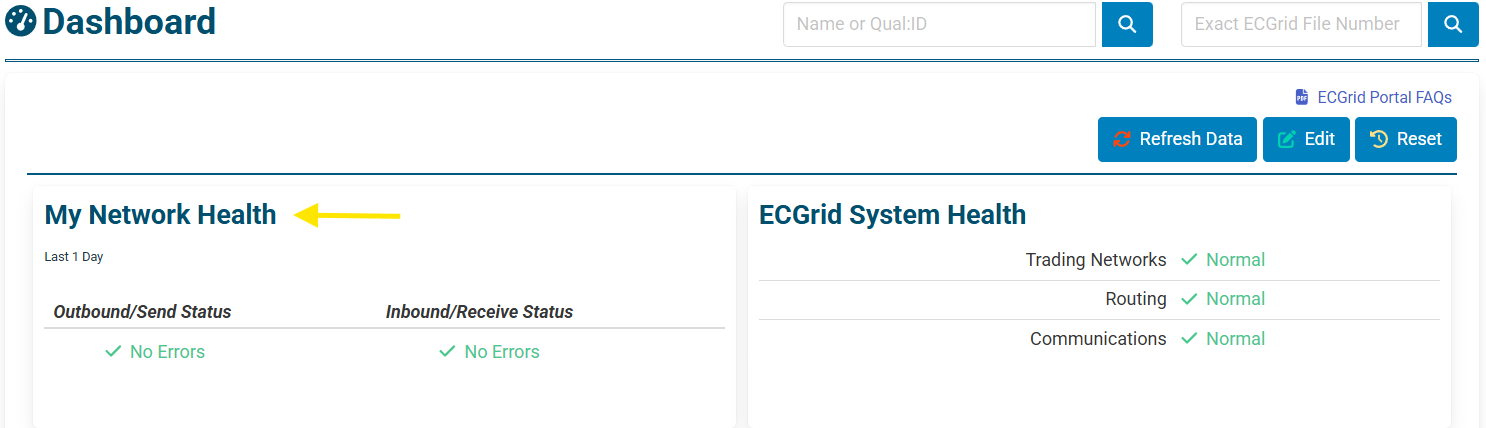
The portal dashboard provides exception-based visibility right on the dashboard, in the “mailbox health” or the “network health” widgets, depending on your user role. If there are any errors, the status information will be updated to identify any exceptions which may require your attention for resolution. We will identify these issues as errors in the health widgets.
If you are looking for historical transactions, the transaction menu item provides rich initial searching capabilities for locating files/interchanges. In addition to using the dashboard for transaction information, you can also search by date range, EDI ID, data direction (inbound/outbound), Interchange Control Number, and more:
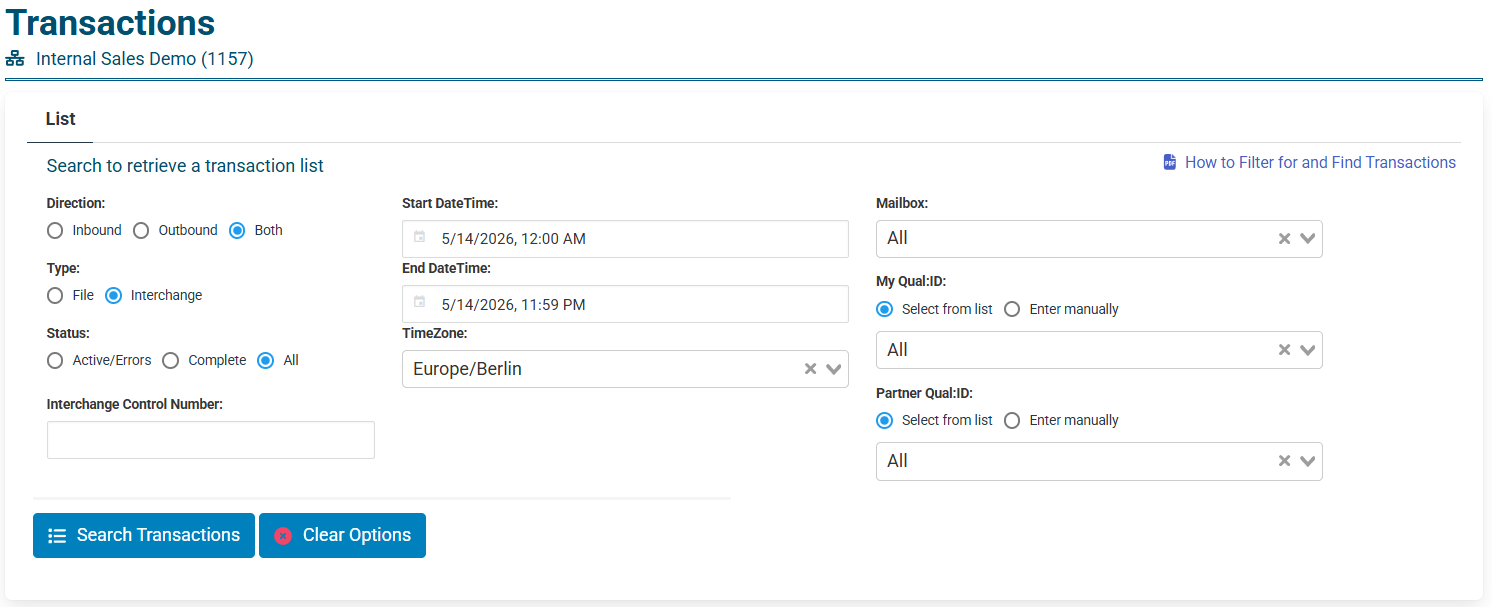
Filters Direction: The direction filter allows you to search for data flow inbound to your network, outbound to your network, or in both directions.
Type: You can choose to search by File or Parcel number, or by Interchange (Envelope). If you change the default to File number, the Interchange Control Number field will change to Mailbag Control Number.
Status: Searching for Active data will show you files that have not yet been successfully completed, (ex: files you have not downloaded, files that have not been transmitted due to AS2 or VAN issues). Searching by Complete allows you to look for all successfully transmitted data and searching by All will show you all data.
Interchange Control Number (File Control Number): The Interchange Control Number field will appear when you are filtering by Interchange. If you choose File under Type, this field will turn to Comm ID/File Number. Please note the min/max for this field is 9/9, so you must include leading zeroes.
Start/End Date: These fields will default to the last 24 hours, or you can choose a timeframe of up to 31 days. You are able to search back to the beginning of your network/mailbox, as all data is archived to the cloud and accessible to you for viewing. Mailbox: As a NetworkAdmin or NetworkUser, you can search by all of your mailboxes at once or you can filter further by specific mailbox.
My ID: The My ID filter allows you to choose a specific ID to search on. If you filtered by a specific mailbox, it will show all IDs on that mailbox, otherwise it will show all IDs for a network. You can choose to "Enter Manually", which allows you to copy/paste an EDI ID into the field.
Partner IDs: Paired with My ID, you can filter by a unique trading partner pair by choosing a trading partner from this drop-down list. You can choose to "Enter Manually", which allows you to copy/paste an EDI ID into the field.
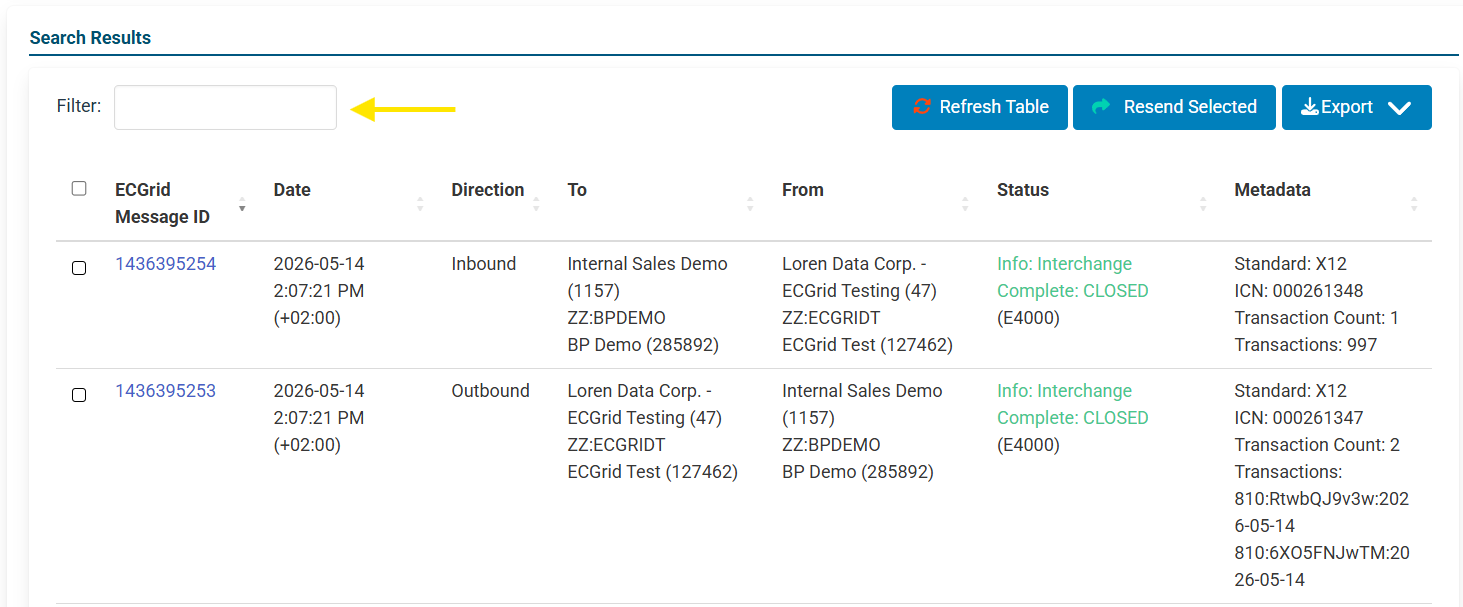
You can also filter your results even further by using the “Filter” field under Search Results, using our powerful dynamic search feature. You can add as many filters as necessary, simply by adding a space between each filter item:
Additional Search Results Functions
Export: All search returns and the meta data can be exported for analysis via CSV or XLS, using the Export button in the upper left-hand corner of the Search Results.
Resend Selected: You can choose files to resend by selecting the individual radio buttons next to the file you want to resend, or by choosing the “Select All” radio button in the top left of the search results, (please see small yellow arrow, above).
Transaction Results
Once you have filtered down to find the transaction you have searched for, you can click on the blue hot link under Interchange ID or Mailbag ID to drill down further into the file results. You will be brought to a Details page. At the top of the page, you will see a Download button in the upper right corner. By clicking this button, you can download the raw EDI file directly to your desktop. Additionally, you will see a color-coded, real-time status of the file:

Under the status, you will see a full page of file details, including From/To, the Process Date, Byte Size, EDI Standard, Document Type, and more.
Files (Parcels)
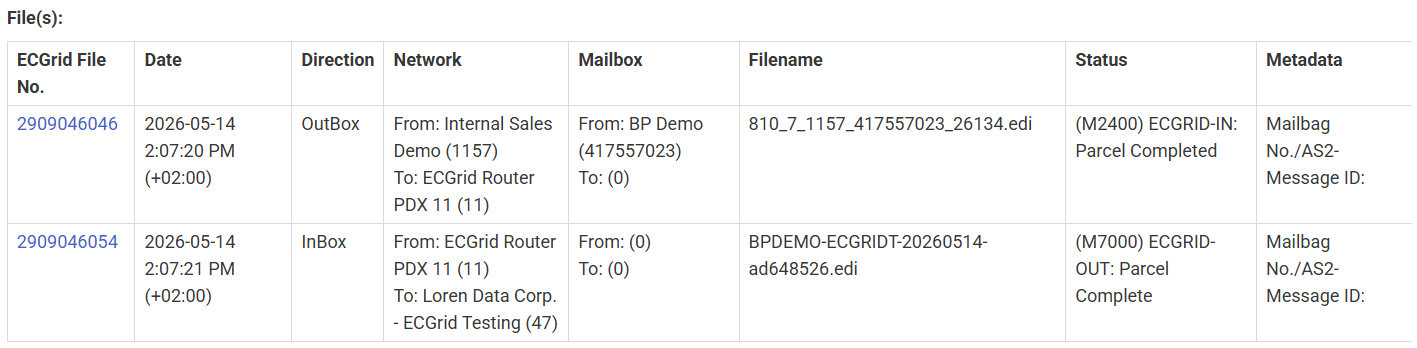
Under the file details, you will find Parcel information. Each Interchange within ECGrid is assigned two Parcel (mailbag) IDs, one inbound and one outbound. This section will provide you with file and status information on both associated parcels, as well as Metadata, which will include a VAN X12.56 mailbag number or AS2 Message ID, if applicable:
Document Content
After the File Summary, you will find the Document Content section. The file is provided in raw EDI format. By using the View Formatted or View Hex buttons on the left, you can change the format the file is presented in:
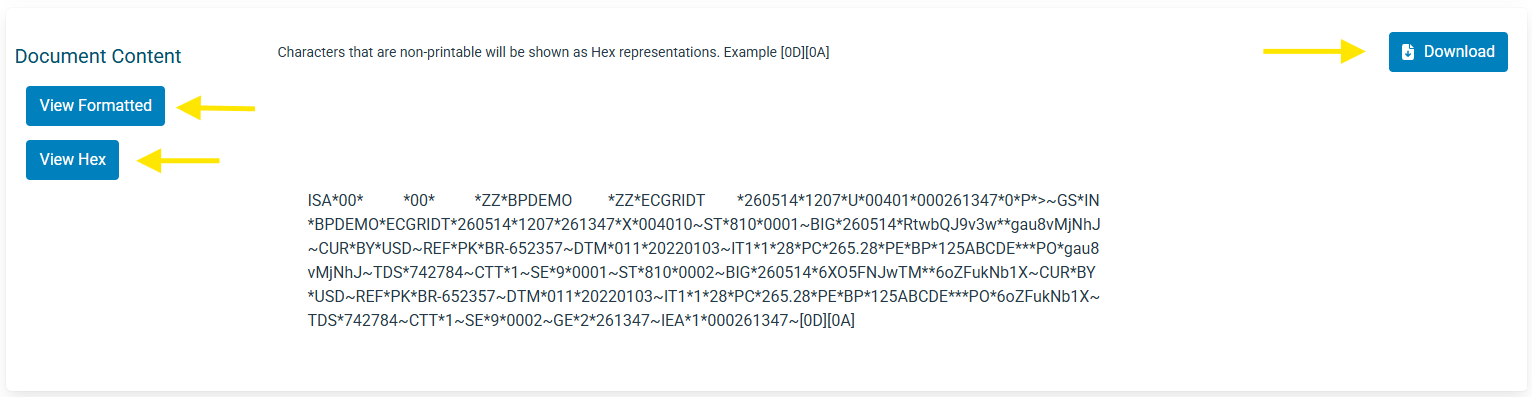
You can also download the file directly to your desktop by clicking on the Download button in the upper right hand corner.
Status Log
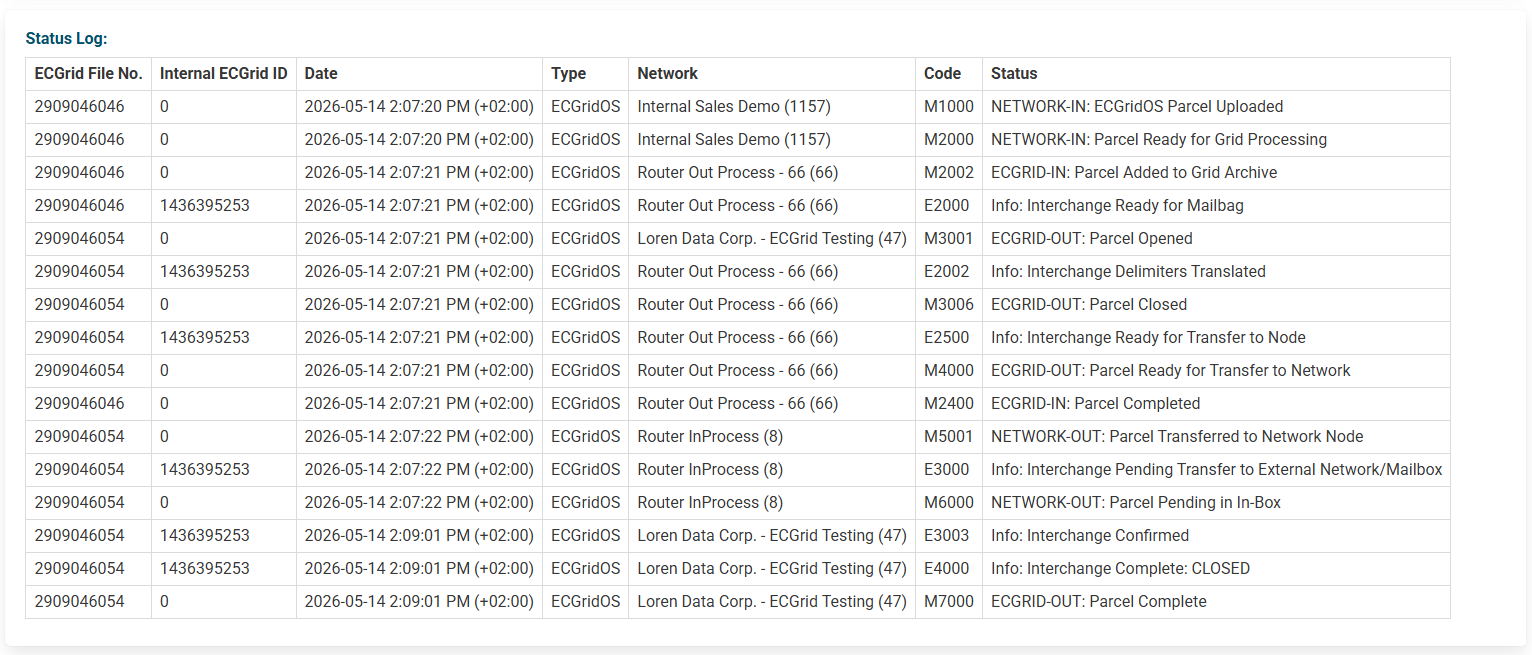
Under the Parcel information section, you can find the log information for every step the file took through the ECGrid network. All codes starting with an “M” is a mailbag (parcel) status and codes starting with “E” is an envelope (interchange) status.
Was this article helpful?
That’s Great!
Thank you for your feedback
Sorry! We couldn't be helpful
Thank you for your feedback
Feedback sent
We appreciate your effort and will try to fix the article