What is an Integration Key?
Definition
An Integration Key is an identifying value assigned to a trading partner for a specific document type. It is the value that Simplify looks for at the Trading Partner XPath location in an incoming document to determine which partner the document belongs to.
How It Works
- Each partner is linked to one or more Document Types. For each linked Document Type, one or more Integration Keys are configured.
- When a file arrives, Simplify reads the value at the Trading Partner XPath field in the document and compares it against all configured Integration Keys.
- If a match is found, the document is routed to the corresponding trading partner.
Important: The Integration Key value must exactly match the value that appears at the Trading Partner XPath field in the incoming document. For example, if the xpath points to a field containing "abv", the Integration Key must be set to "abv". |
Where to Find It
Navigate to: Advance Config → Connected Partners → open a Trading Partner → Integration Keys tab.
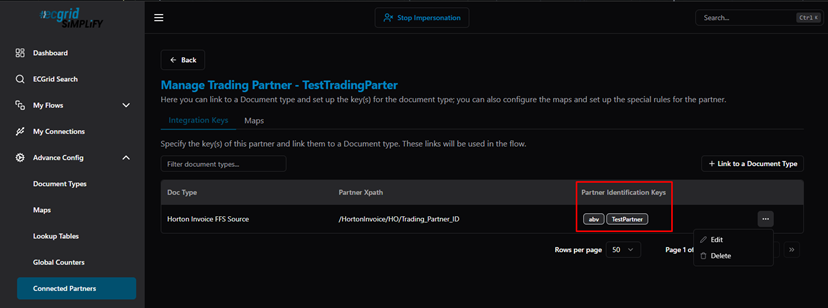
Manage Trading Partner — Integration Keys tab showing Doc Type, Partner Xpath, and Partner Identification Keys (abv, TestPartner)
Click ··· → Edit to manage the Integration Keys for a linked Document Type:
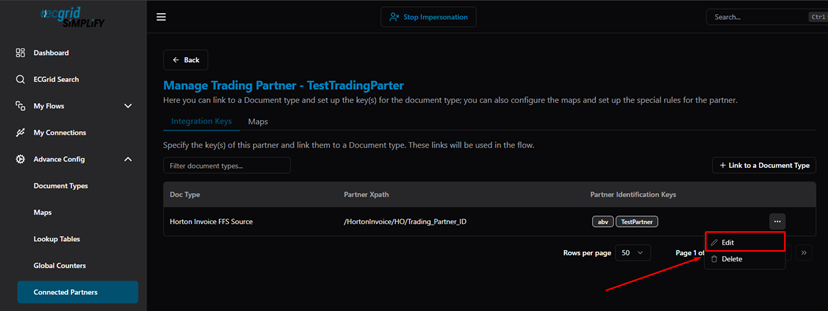
Integration Keys — actions menu (Edit / Delete)
How to Manage Integration Keys
In the Edit dialog, enter key values in the input fields and click + Add Key to add more:
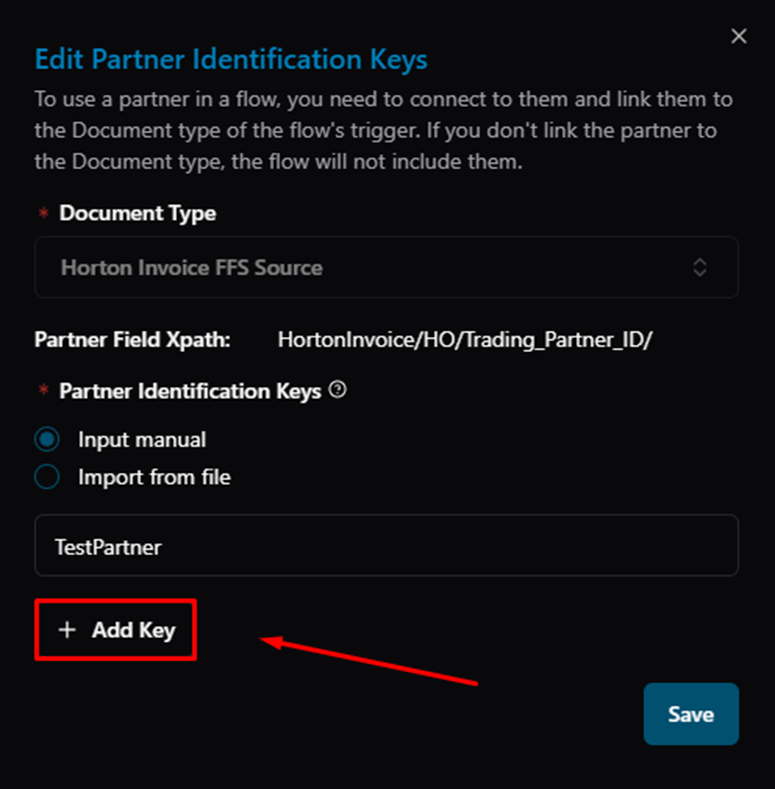
Edit dialog — existing key "TestPartner" with + Add Key button
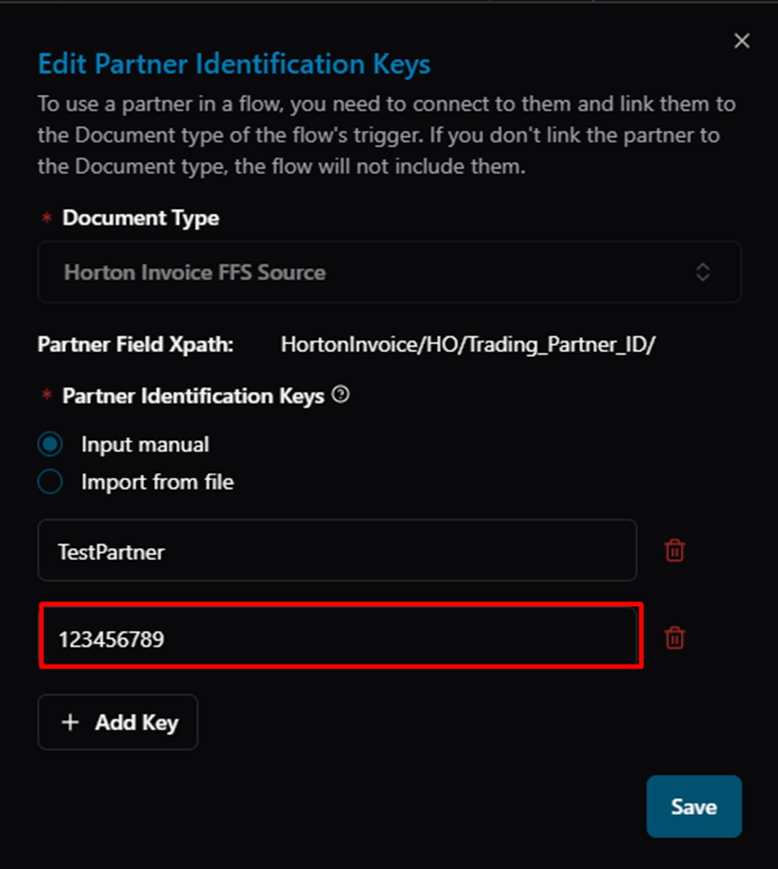
Edit dialog — second key "123456789" added (one partner can have multiple keys)
Click the delete icon to remove a key:
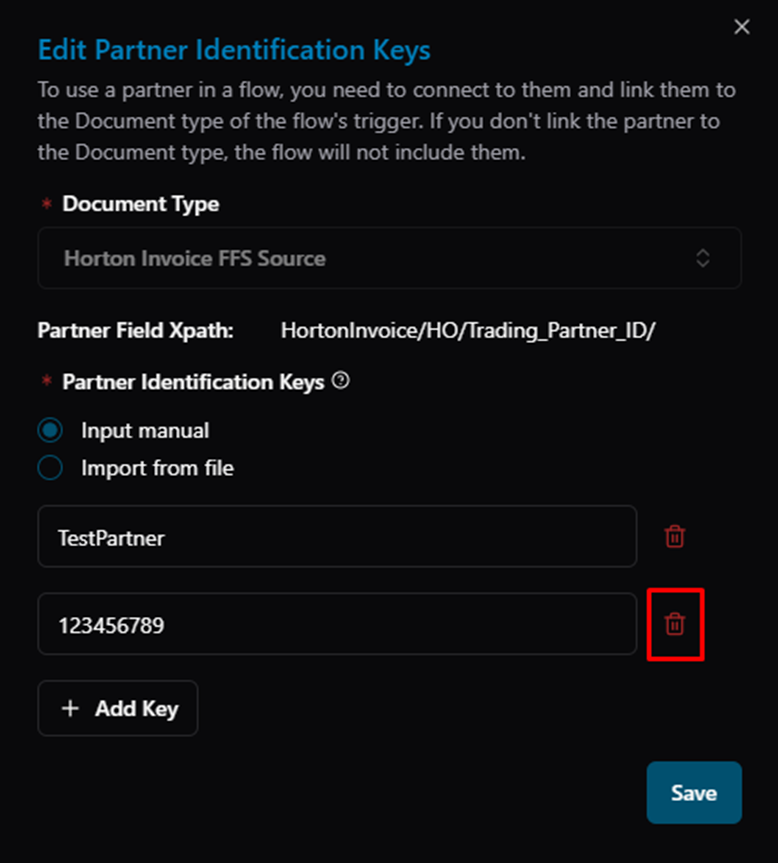
Edit dialog — delete icon highlighted on a key entry
Alternatively, select "Import from file" to upload multiple keys at once via CSV. Choose whether to keep existing data or replace it:
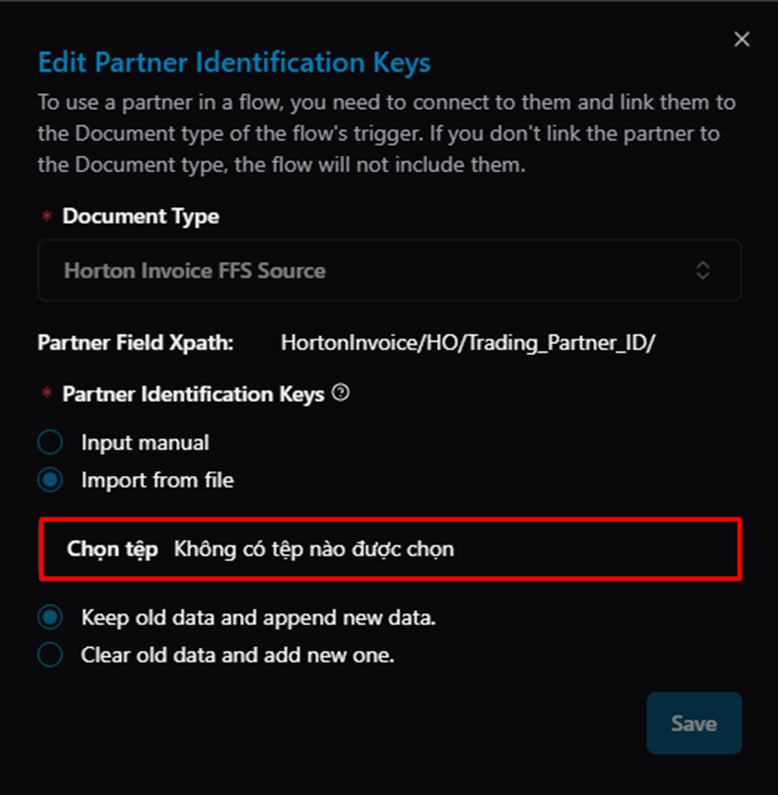
Edit dialog — Import from file option with Keep old data / Clear old data options
Click Save to confirm:
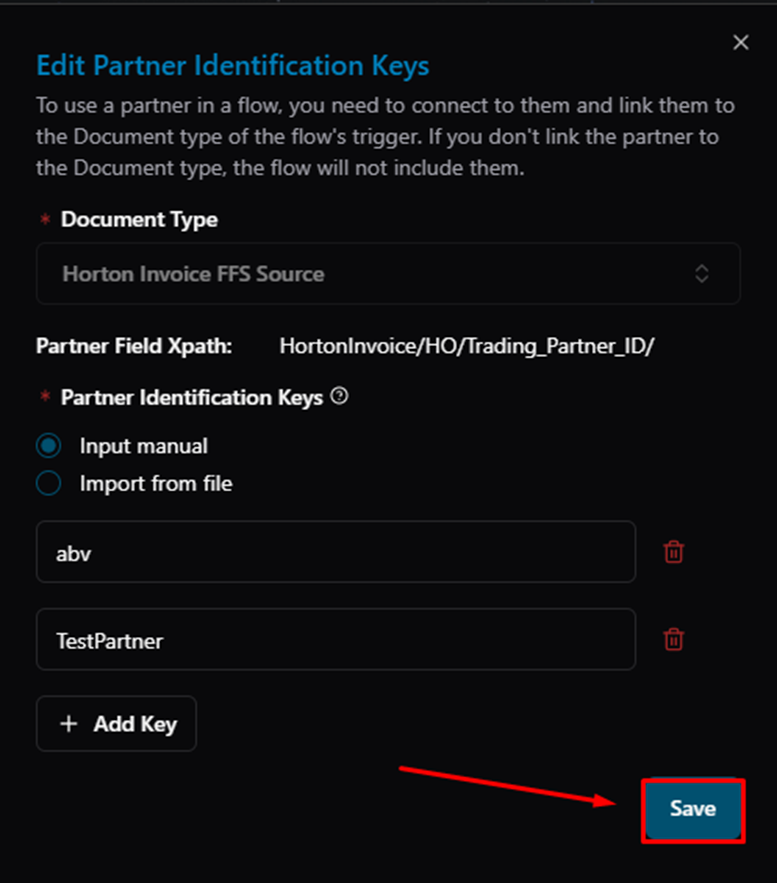
Edit dialog — keys "abv" and "TestPartner" confirmed, Save button highlighted
The Partner Field Xpath shows which field in the incoming document the system will read to match against these keys:
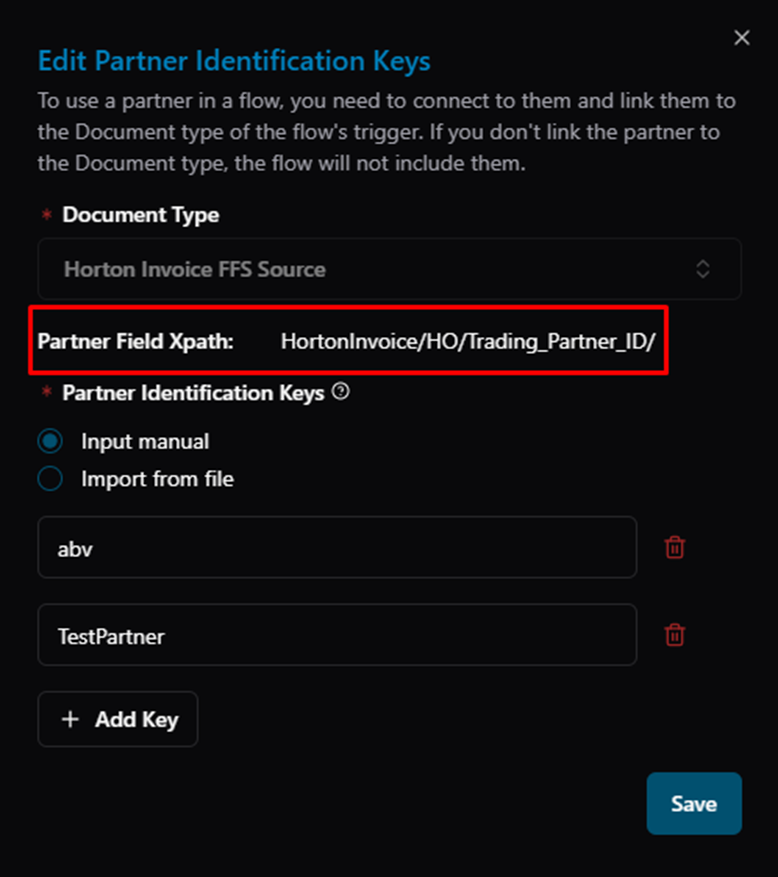
Edit Partner Identification Keys — Partner Field Xpath (HortonInvoice/HO/Trading_Partner_ID/) with configured keys "abv" and "TestPartner"
Related Articles
For more details, refer to the following articles in the Knowledge Center:
Was this article helpful?
That’s Great!
Thank you for your feedback
Sorry! We couldn't be helpful
Thank you for your feedback
Feedback sent
We appreciate your effort and will try to fix the article