What is a Trading Partner?
Definition
A Trading Partner is an external business entity — such as a supplier, retailer, or logistics provider — that your organization exchanges documents with.
In Simplify, trading partners are configured as profiles that store Integration Keys and can have custom maps assigned to them for specific document types.
Account Level & Hierarchy
Simplify uses a four-level hierarchy: Host → Reseller → Customer → Partner. Trading partners can be created at the Host level (available to everyone), at the Reseller level (custom partners for that Reseller's Customers), or used directly within a Customer account. |
- Host partners — pre-built system partners available to all Resellers and Customers. Shown with a "Host" tag.
- Custom partners — created by a Reseller and shown with a "Mine" tag. Available to all Customer accounts under that Reseller.
- Customers connect to partners (Host or custom) via the Connected Partners page to use them in Flows.
Step 1 — View and Create Partners (Reseller Level)
Navigate to: System Partners in the left navigation menu (Reseller account).
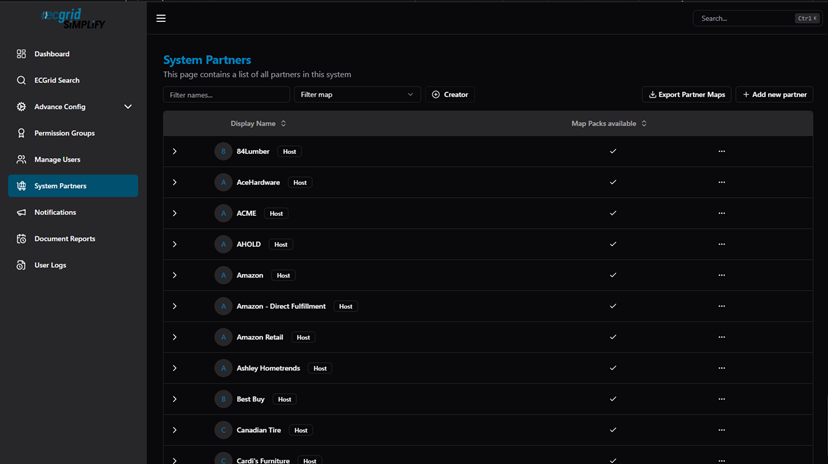
System Partners — list of all partners (Host and custom), with Display Name and Map Packs available columns
Click + Add new partner to create a custom partner:
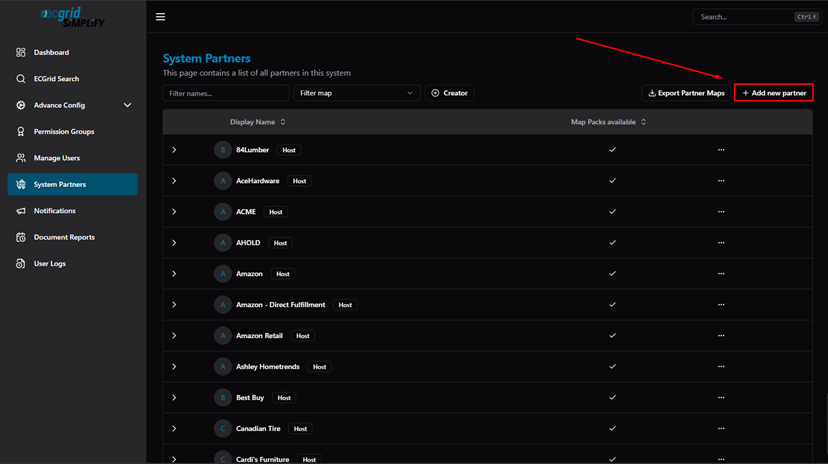
System Partners — + Add new partner button
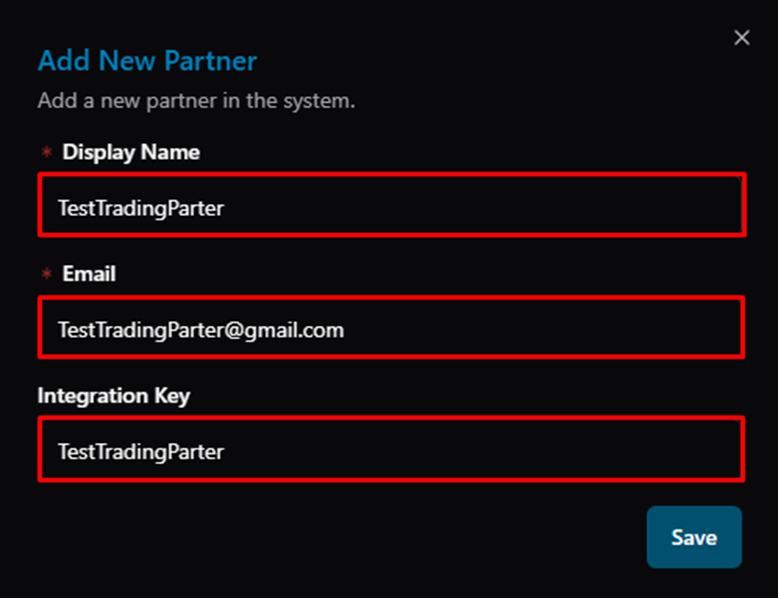
Add New Partner dialog — Display Name, Email (required), and Integration Key fields
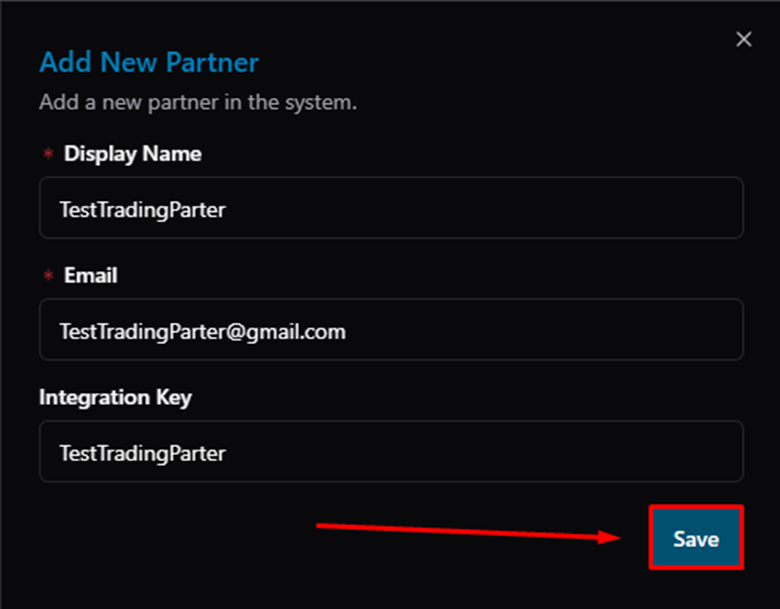
Add New Partner dialog — click Save
The new partner appears in the list with a "Mine" tag:
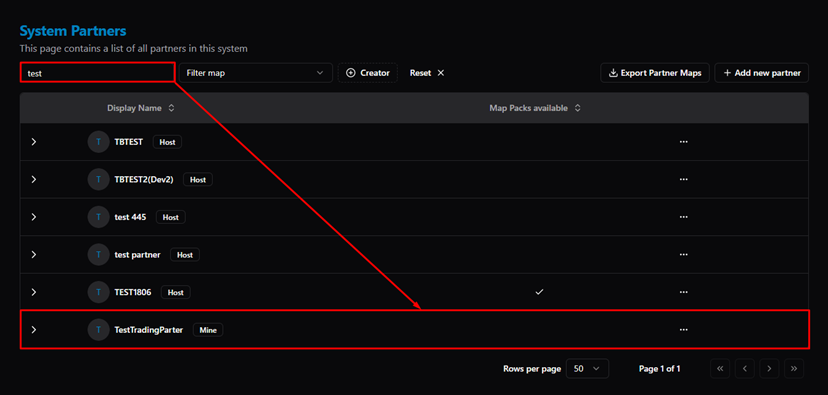
System Partners — newly created "TestTradingParter" with Mine tag
Click ··· on a partner to access Info, Update, or Login as Partner:
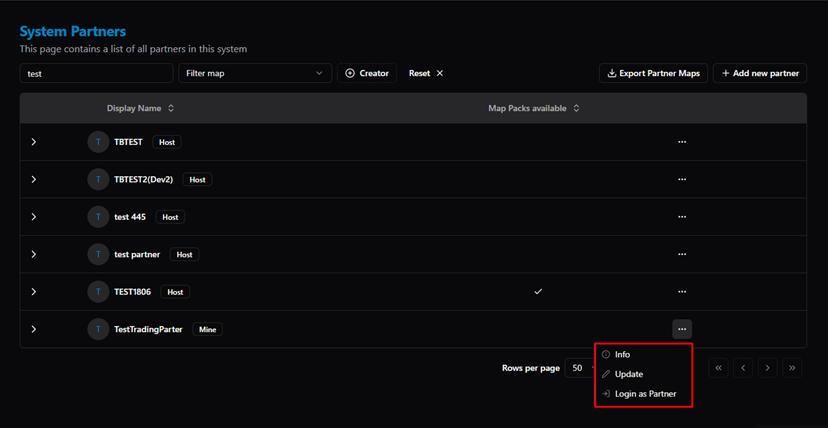
System Partners — actions menu (Info / Update / Login as Partner)
Step 2 — Connect a Partner (Customer Level)
From the Customer account, navigate to: Advance Config → Connected Partners. Click + Connect to a partner:
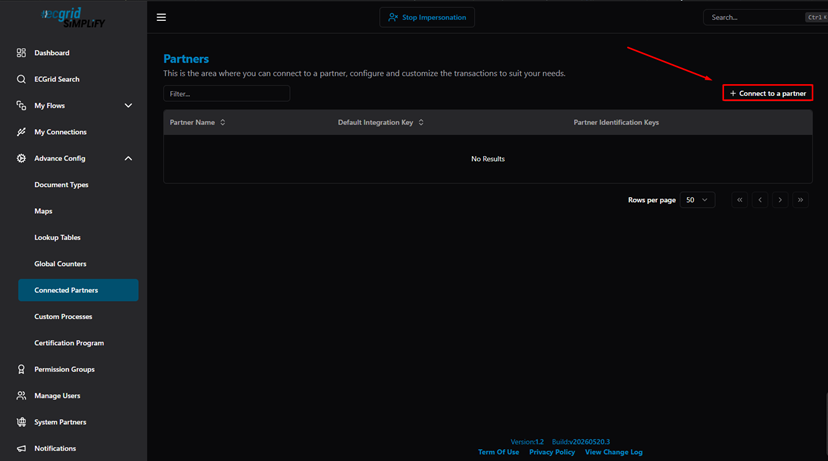
Connected Partners — Customer account view (empty), + Connect to a partner button
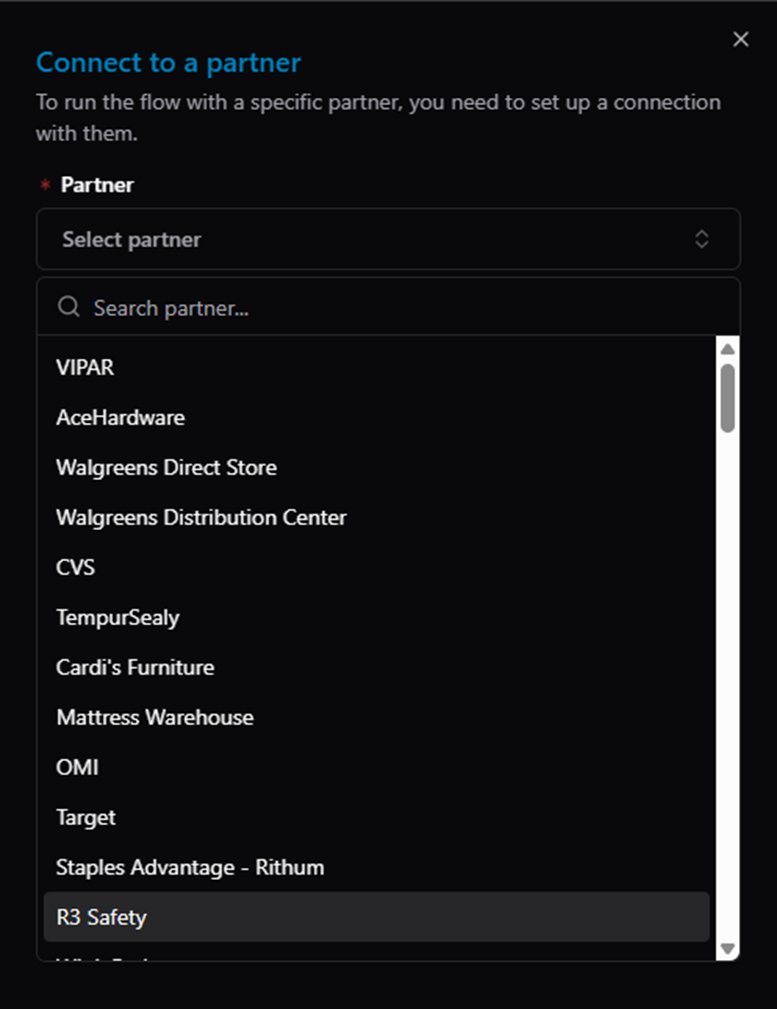
Connect to a partner dialog — select from all available partners (Host and custom)
Search for the partner by name, select it, then click Save:
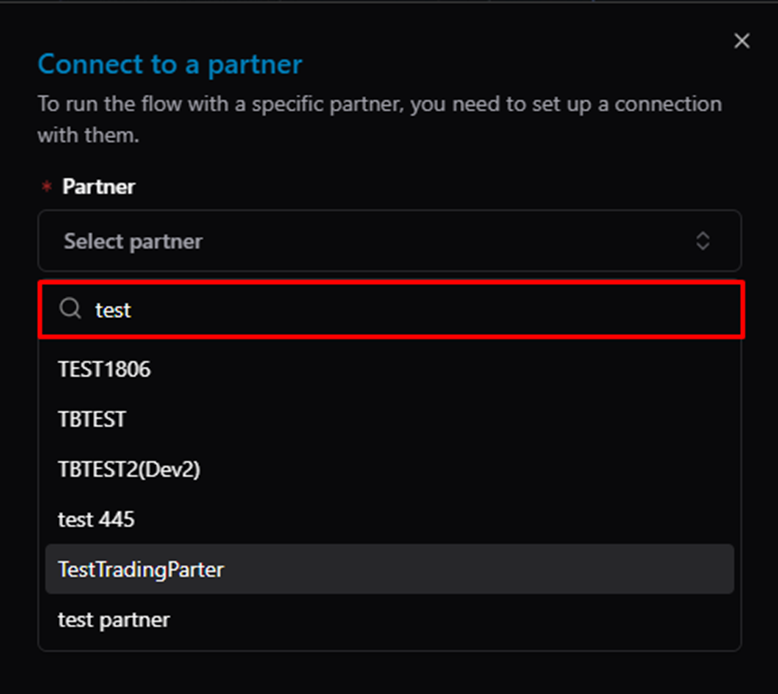
Connect to a partner — search results filtered by "test"
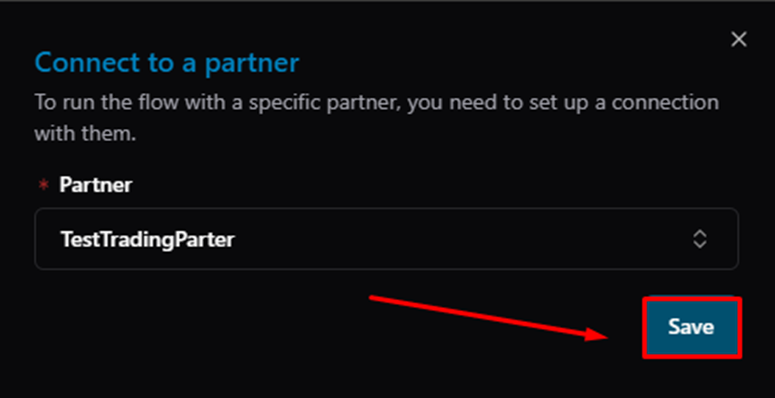
Connect to a partner — partner selected, click Save
Step 3 — Set Up Integration Keys
After connecting, click on the partner to open the Manage Trading Partner page. Go to the Integration Keys tab and click + Link to a Document Type:
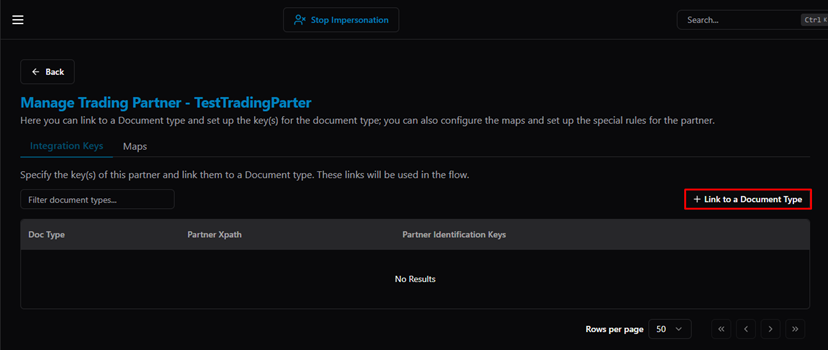
Manage Trading Partner — Integration Keys tab (Doc Type, Partner Xpath, Partner Identification Keys columns)
Select the Document Type. The Partner Field Xpath is automatically shown — this is the xpath that was configured on the Document Structure. Enter the Integration Key value(s) for this partner:
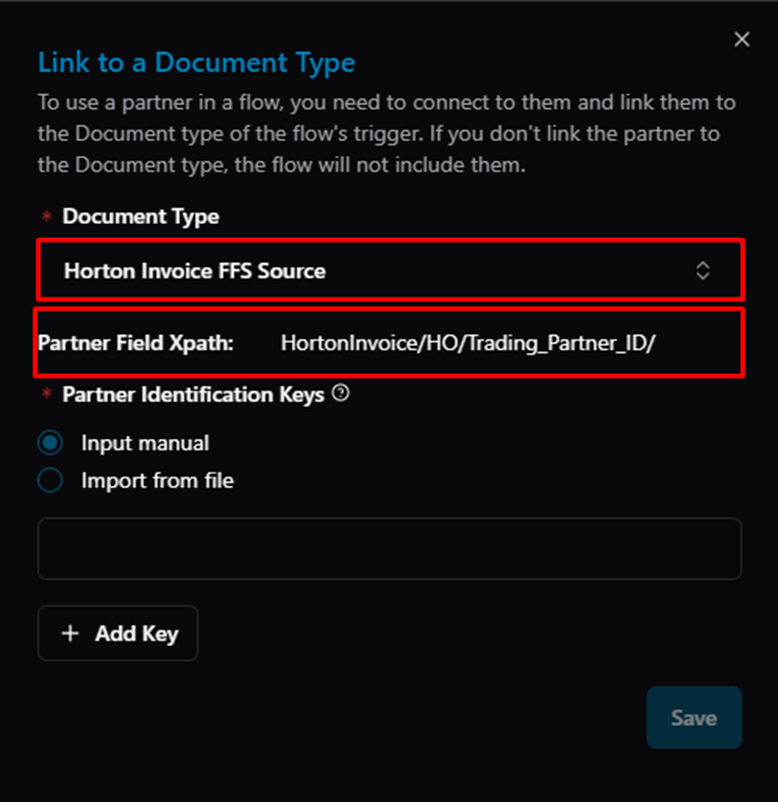
Link to a Document Type — Document Type selected, Partner Field Xpath displayed (HortonInvoice/HO/Trading_Partner_ID/), Integration Key input
After saving, the linked Document Type and Integration Key appear in the list:
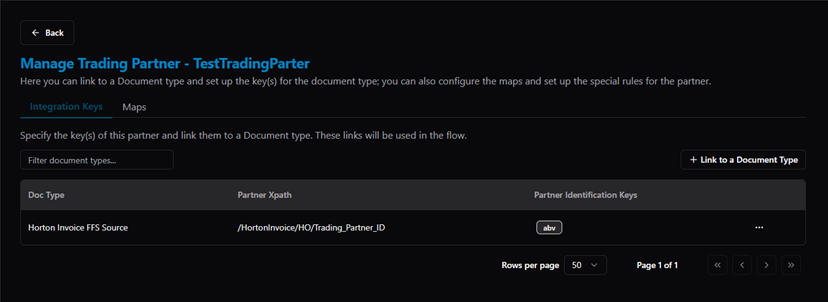
Manage Trading Partner — Integration Key linked (Doc Type: Horton Invoice FFS Source, xpath, key: abv)
Step 4 — Add Partner to a Flow Step
Open a Flow, click ··· → Config to open the Flow Configuration:
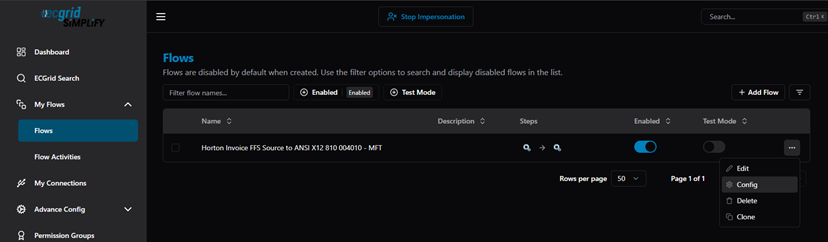
Flows list — Config option in the ··· menu
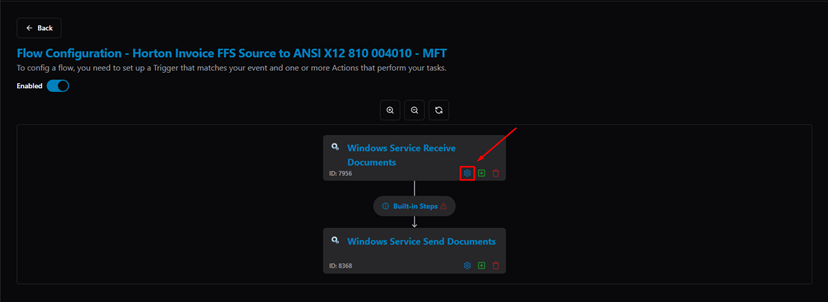
Flow Configuration — Trigger (Windows Service Receive Documents) and Action (Windows Service Send Documents) with settings icon highlighted
Click the settings icon (⚙) on a step → go to the Setup Partners tab → click + Add Partner:
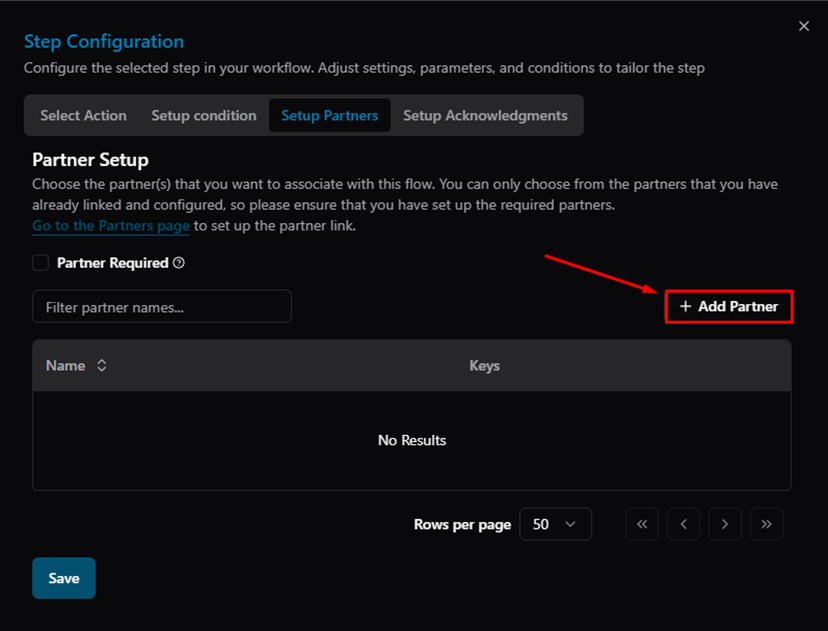
Step Configuration — Setup Partners tab, + Add Partner button
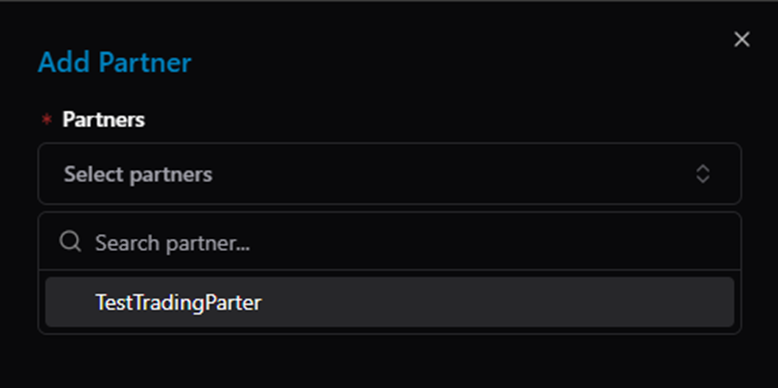
Add Partner dialog — list of connected partners
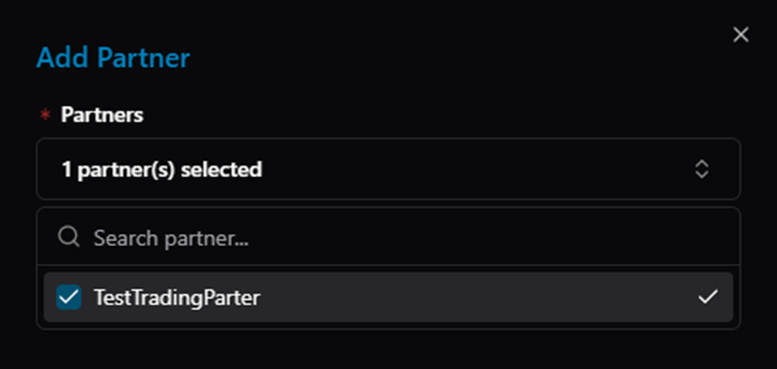
Add Partner — TestTradingParter selected (checkbox checked)
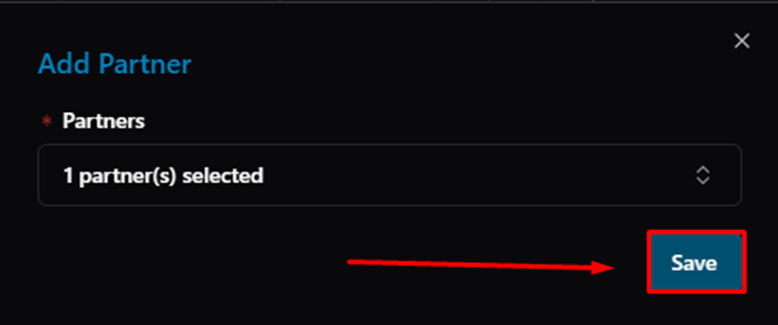
Add Partner — click Save
The partner now appears in the step with its Integration Key:
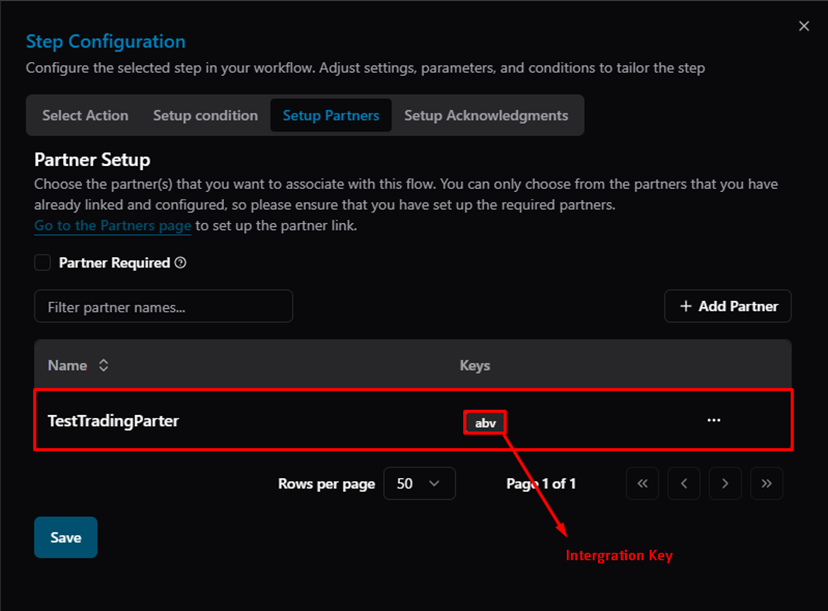
Setup Partners — TestTradingParter added with Integration Key "abv"
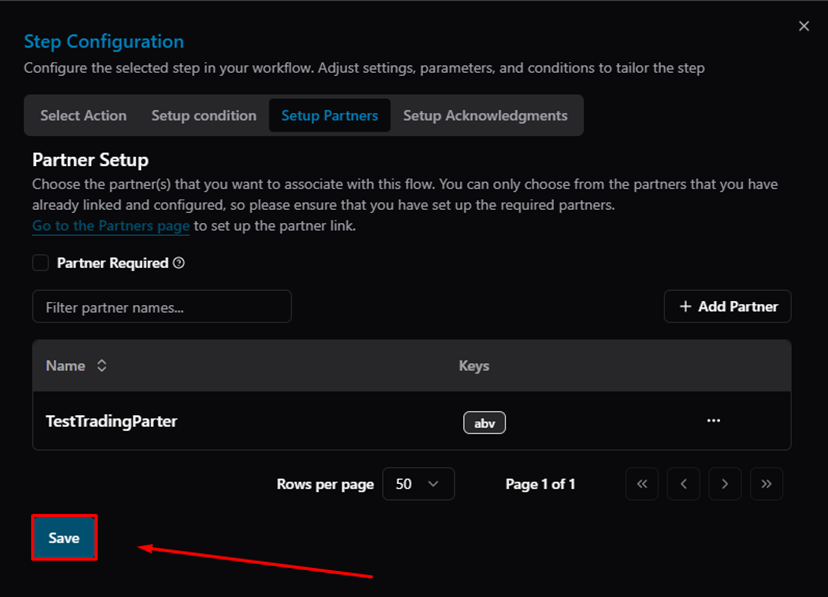
Step Configuration — click Save to confirm partner assignment
Result — Partner in Flow Activities
Once the flow runs, documents processed with a specific partner are labeled in Flow Activities, making it easy to track which partner each document belongs to:
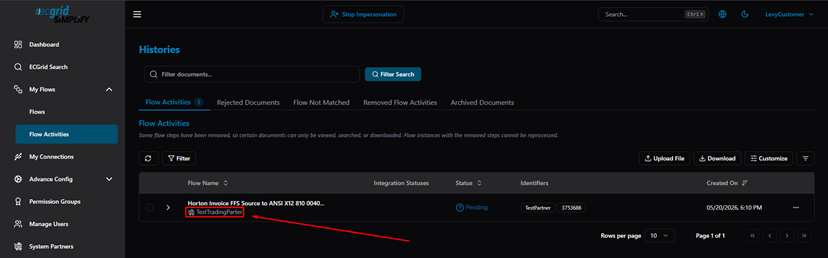
Flow Activities — processed document showing partner name "TestTradingParter" as an identifier
Related Articles
For more details, refer to the following articles in the Knowledge Center:
- Adding a New Custom Trading Partner
- Set Trading Partner Specific Maps
- Setting up Integration Keys and Configurations
- How to Setup Trading Partners on Customer Account
Was this article helpful?
That’s Great!
Thank you for your feedback
Sorry! We couldn't be helpful
Thank you for your feedback
Feedback sent
We appreciate your effort and will try to fix the article