What is a Lookup Table?
Definition
A Lookup Table in Simplify is a configurable reference table that maps an input value (from a source data file) to a corresponding output value (written to the destination file).
Lookup tables can be applied within Validation Rules or directly in a Map. Entries can be managed manually, imported via CSV, or maintained through an API call.
Account Level & Inheritance
Lookup Tables follow the Simplify hierarchy: Host → Reseller → Customer → Partner. Tables created at a higher level (e.g., Host Reseller) can be shared with and reused by lower-level accounts (Customer and Partner), reducing duplication. |
- Reseller-level tables — available to all Customers and Partners under that Reseller.
- Customer-level tables — available to all Partners under that Customer.
- Partner-level tables — private to that specific partner configuration.
By default, a Customer account only sees tables it created. To view inherited tables from the Reseller or Host, enable Display Settings → View all lookup tables (see section below).
Table Structure
Each lookup table entry consists of four columns:
- Name — the input (lookup) value used as a key.
- Value — the output value returned when the name is matched.
- Description — an optional context note.
- Default Value — when checked, this entry is the fallback returned if no matching name is found.
Where to Find It
Navigate to: Advance Config → Lookup Tables in the left navigation menu.
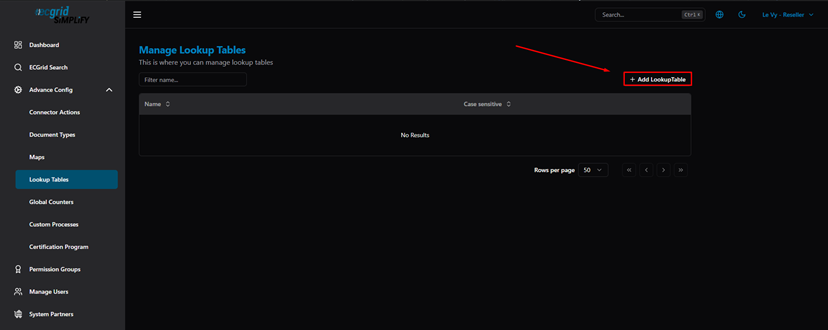
Lookup Tables — list view (Name, Case Sensitive columns)
Click + Add LookupTable to create a new table:
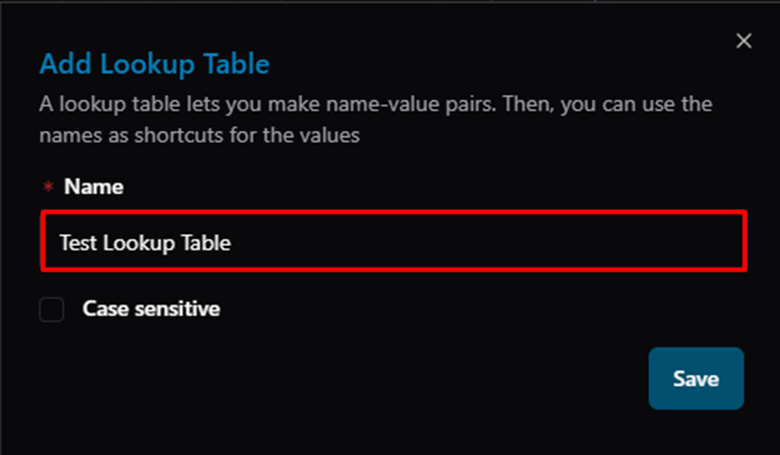
Add Lookup Table dialog — enter Name
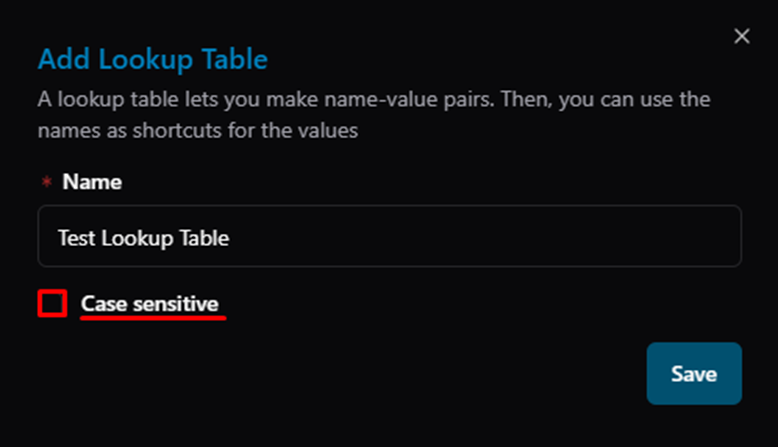
Add Lookup Table dialog — Case Sensitive option
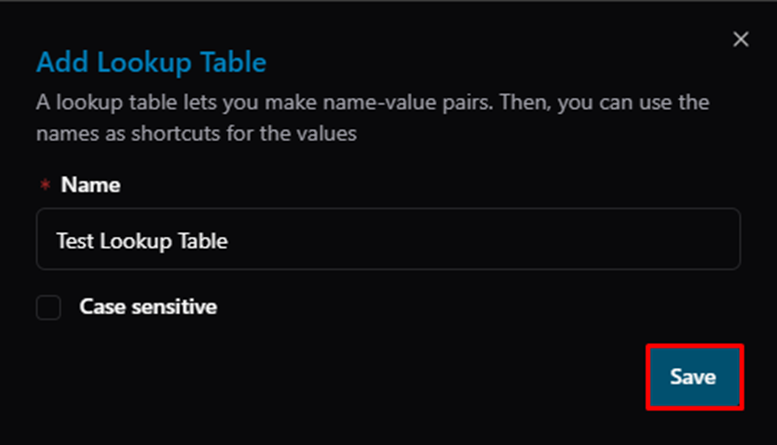
Add Lookup Table — Save button
After saving, click the table name to open its entries page:
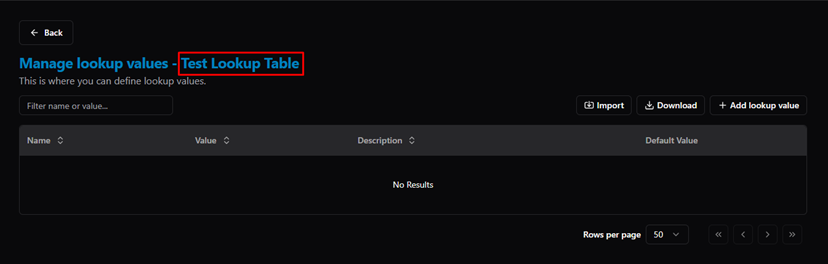
Manage Lookup Values — entry list (Name, Value, Description, Default Value)
How to Import Lookup Values
You can bulk-import entries using a CSV file. Click Import on the entries page:
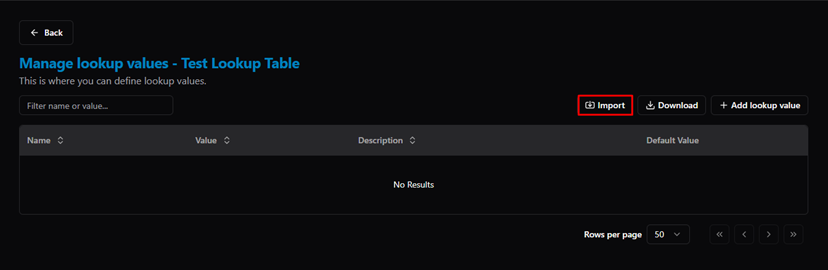
Manage Lookup Values — empty table, Import button highlighted
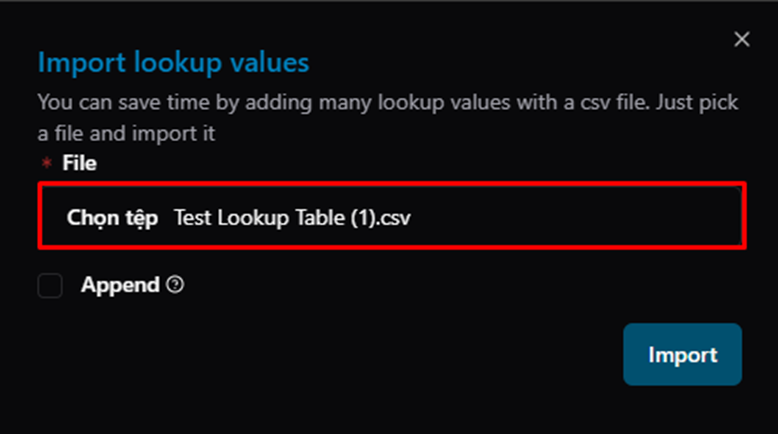
Import Lookup Values — select a CSV file
The Append option controls how the import behaves:
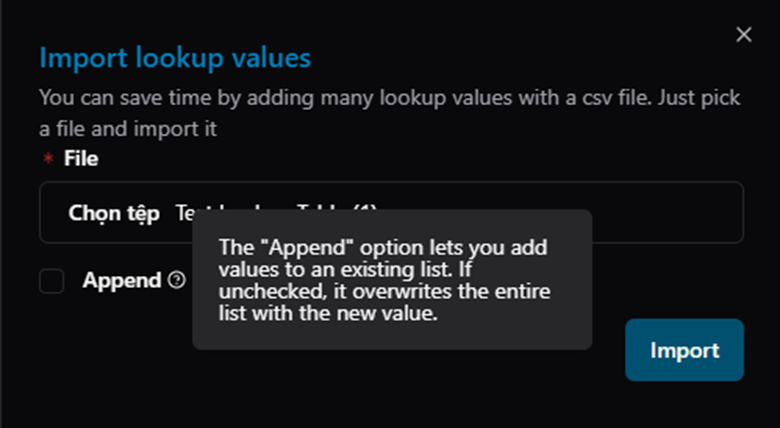
Import dialog — Append tooltip: checked = add to existing list; unchecked = overwrite entire list
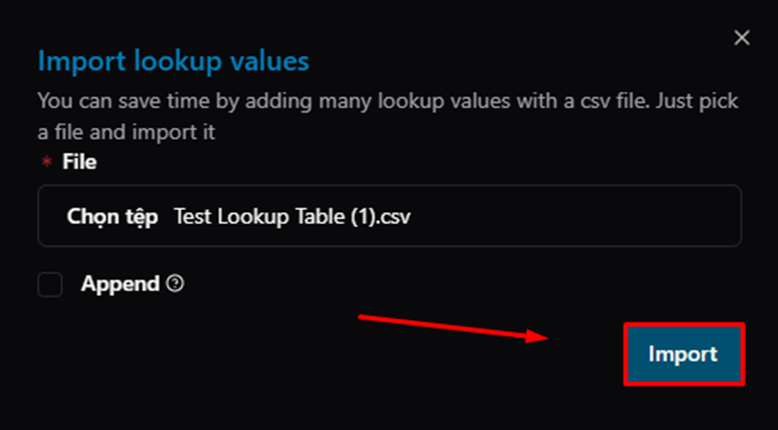
Import dialog — click Import to confirm
After a successful import, the entries appear in the table:
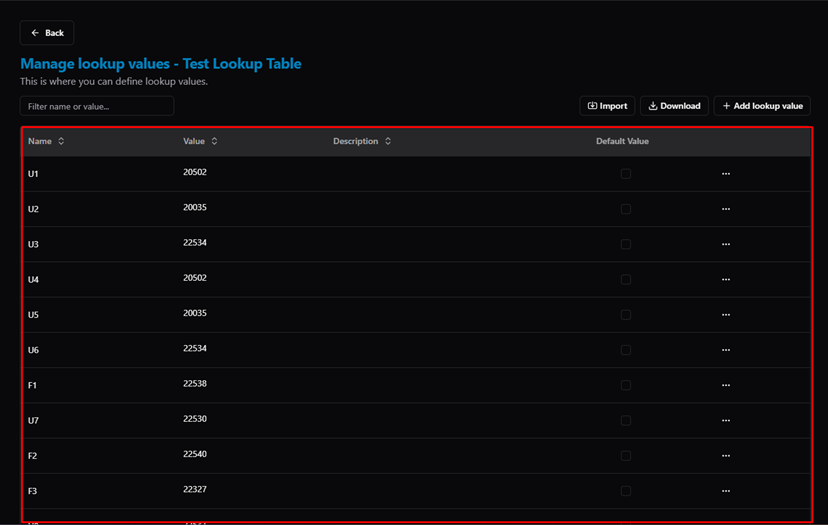
Manage Lookup Values — populated list after import
How to Set a Default Value
Check the Default Value box on any entry to make it the fallback when no match is found:
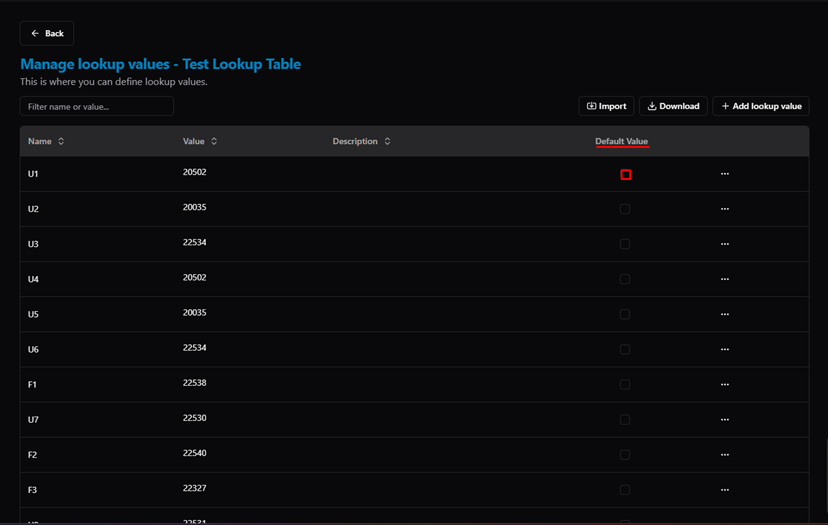
Lookup Values — Default Value checkbox (U1 row checked)
How to Edit or Delete an Entry
Click ··· on any row to open the actions menu:
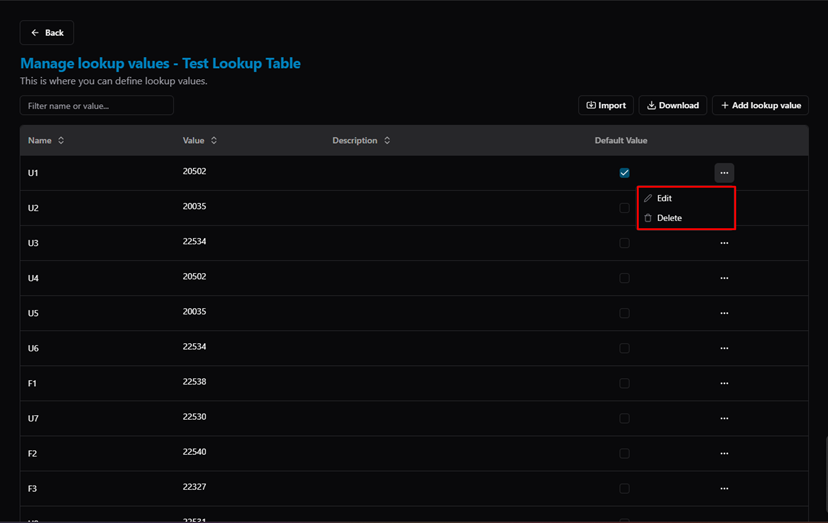
Lookup Values — actions menu (Edit / Delete)
Select Edit to modify the Name, Value, or Description:
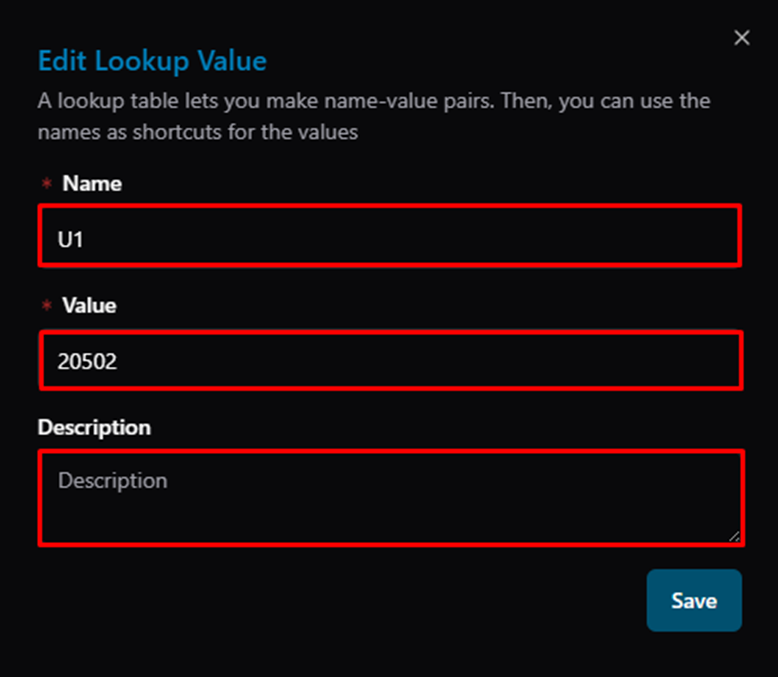
Edit Lookup Value dialog — Name, Value, Description fields
How to Download Lookup Values
Click Download to export the current table entries as a CSV file:
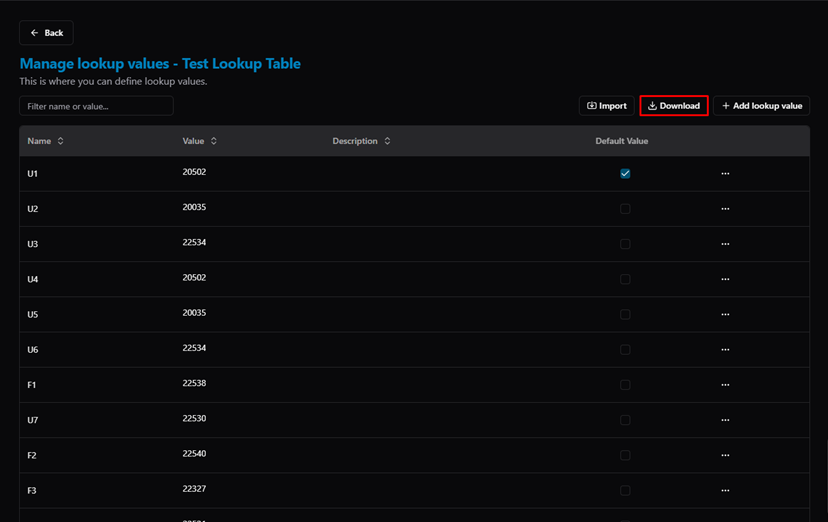
Manage Lookup Values — Download button highlighted
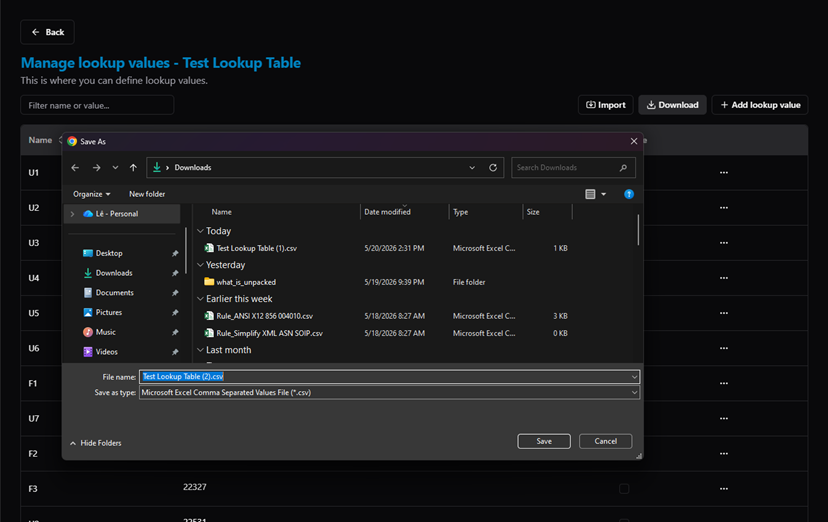
Save As dialog — save exported CSV to local machine
How to Add a Single Entry
Click + Add lookup value to manually add one entry at a time:
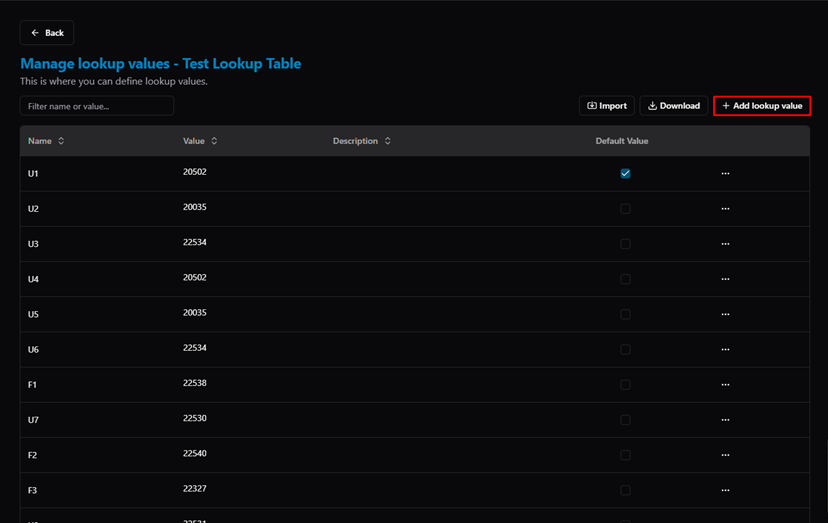
Manage Lookup Values — + Add lookup value button
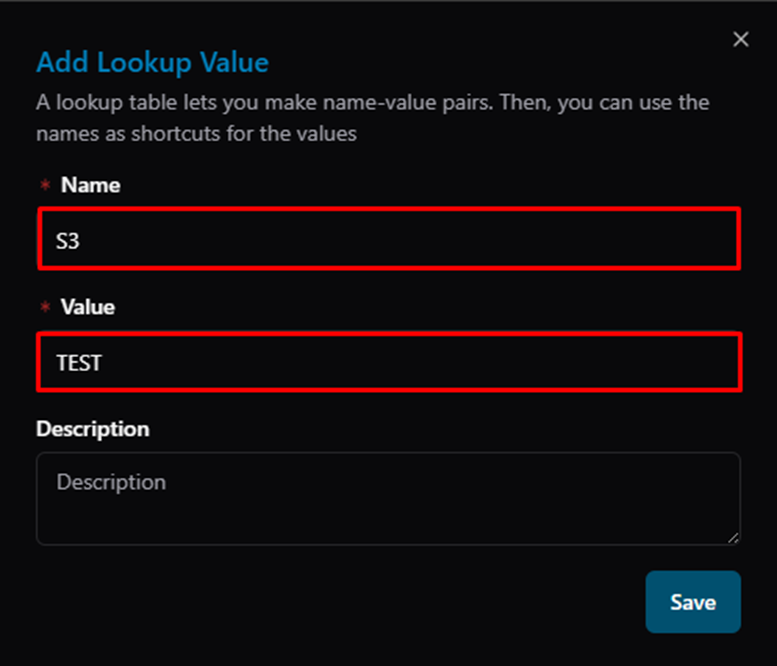
Add Lookup Value dialog — enter Name and Value (required fields)
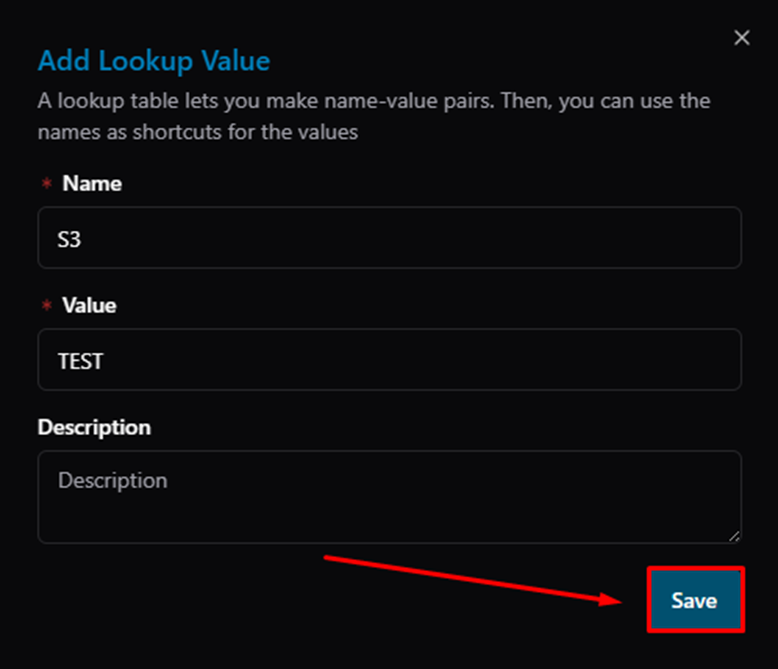
Add Lookup Value dialog — click Save
The new entry appears at the top of the list:
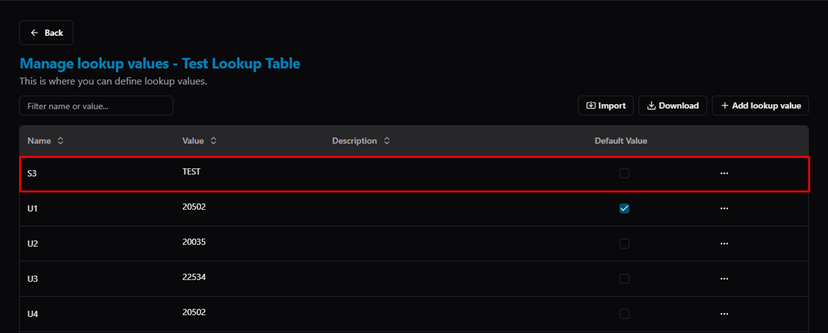
Manage Lookup Values — newly added entry (S3 / TEST) at top of list
Viewing Inherited Tables (Display Settings)
When logged in as a Customer, the Lookup Tables page initially shows only tables created by that Customer:
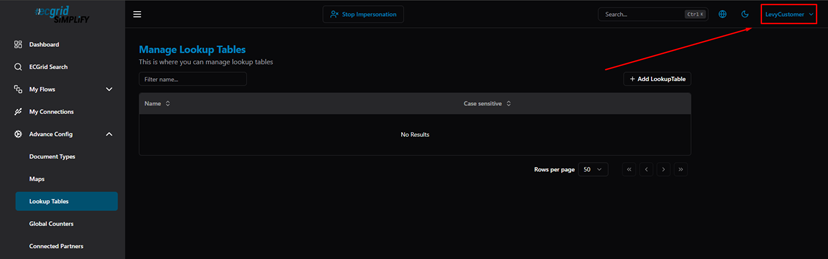
Lookup Tables — Customer account view (No Results — own tables only)
To also view tables created by the Reseller or Host, open Display Settings from the top-right user menu:
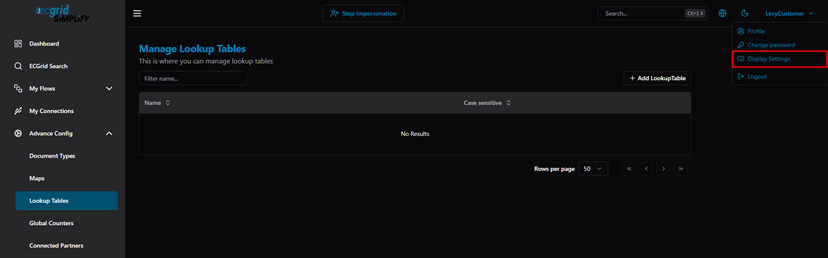
User menu — Display Settings option
Enable the "View all lookup tables" toggle:
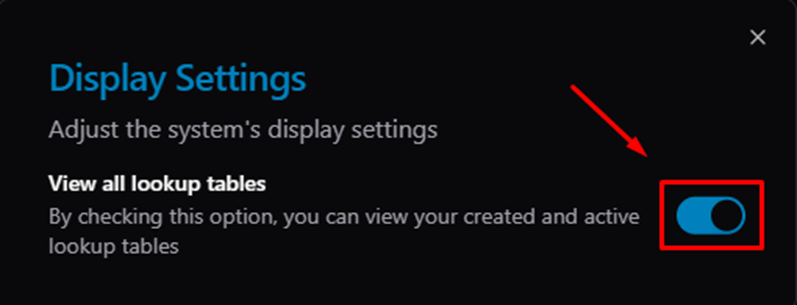
Display Settings — View all lookup tables toggle (ON)
The list now shows all inherited tables. The ⓘ icon on each row shows which account level created it:
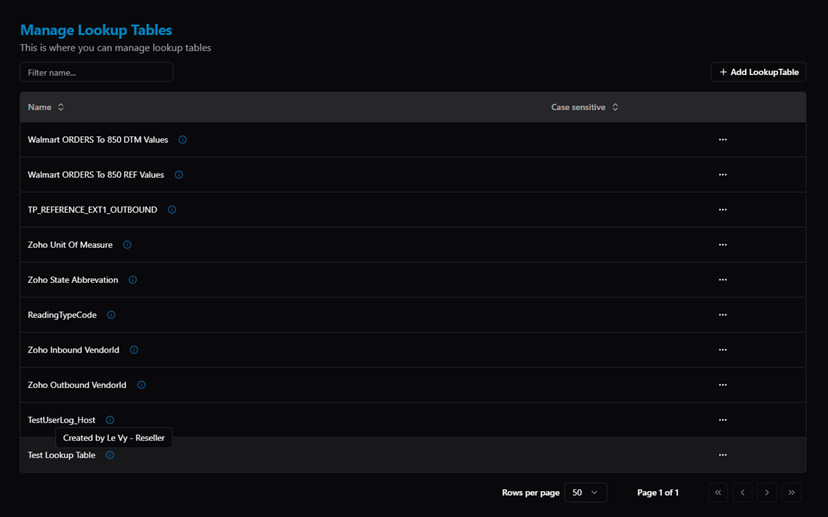
Lookup Tables — all inherited tables visible; tooltip shows "Created by Le Vy - Reseller"
How to Use Lookup Tables
Lookup Tables can be used in two ways inside Simplify:
- In a Map — use the built-in function getXrefValue(lkTableName, valueToCheck) to look up a value from the table and return the corresponding output.
- In a Validation Rule — use the LookupTable rule type to check whether an incoming value exists in a specified table.
Related Articles
For more details, refer to the following articles in the Knowledge Center:
Was this article helpful?
That’s Great!
Thank you for your feedback
Sorry! We couldn't be helpful
Thank you for your feedback
Feedback sent
We appreciate your effort and will try to fix the article