How to Create a Scheduled Document Report in ECGrid Simplify
Scheduled Document Reports allow you to automatically receive a customized document status report via email on a set schedule. Follow the steps below to set one up.
STEP 1
Navigate to Document Reports
From the left navigation menu, click Document Reports. This page displays all existing scheduled reports for your account.
Click + Add Schedule Report in the upper right corner to open the setup panel.
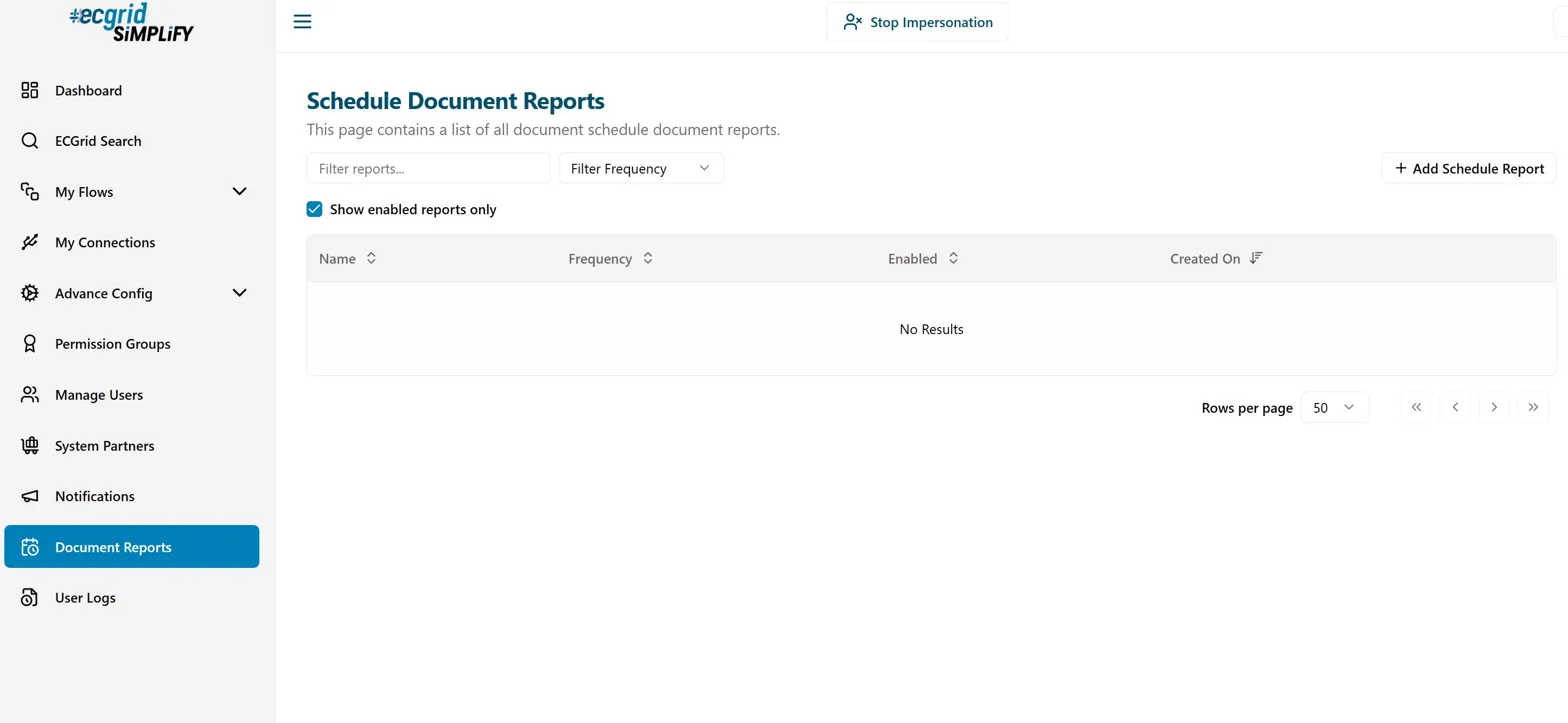
Tip: Check the Show enabled reports only checkbox to filter your list to active reports. Uncheck it to see all reports including disabled ones.
STEP 2
Fill Out the Report Details
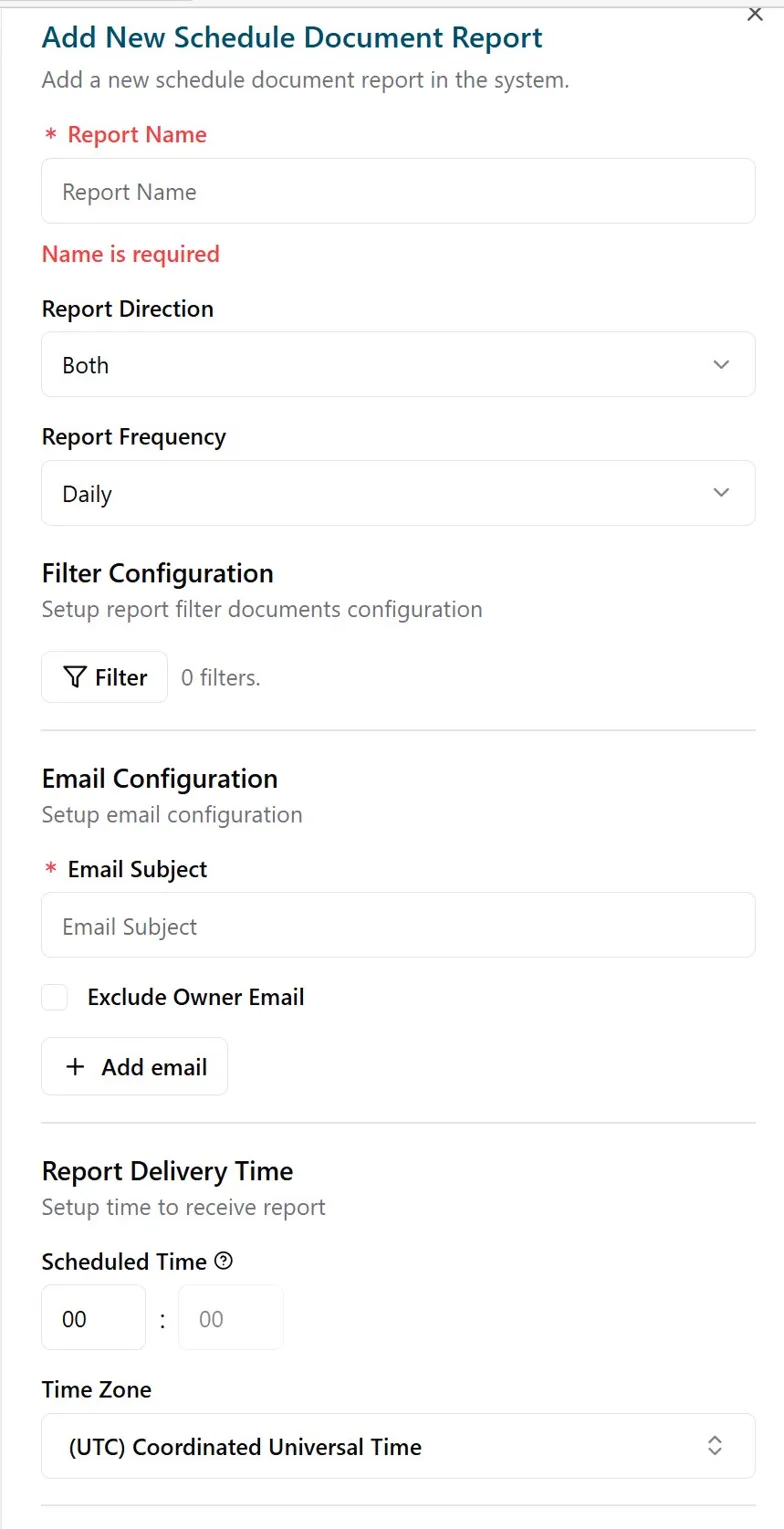
Complete the following fields in the Add New Schedule Document Report panel:
Report Name (Required) — Enter a unique name to identify this report.
Report Direction — Choose Inbound, Outbound, or Both.
Report Frequency — Select how often the report runs (e.g., Daily, Weekly).
Filter Configuration — Optionally add filters to narrow which documents are included.
Email Subject (Required) — Enter the subject line for the report email.
Add Email / Exclude Owner Email — Add additional recipients. Check Exclude Owner Email if you don't want the account owner included.
Scheduled Time & Time Zone — Set the time and time zone for report delivery.
STEP 3
Customize Your Report Columns
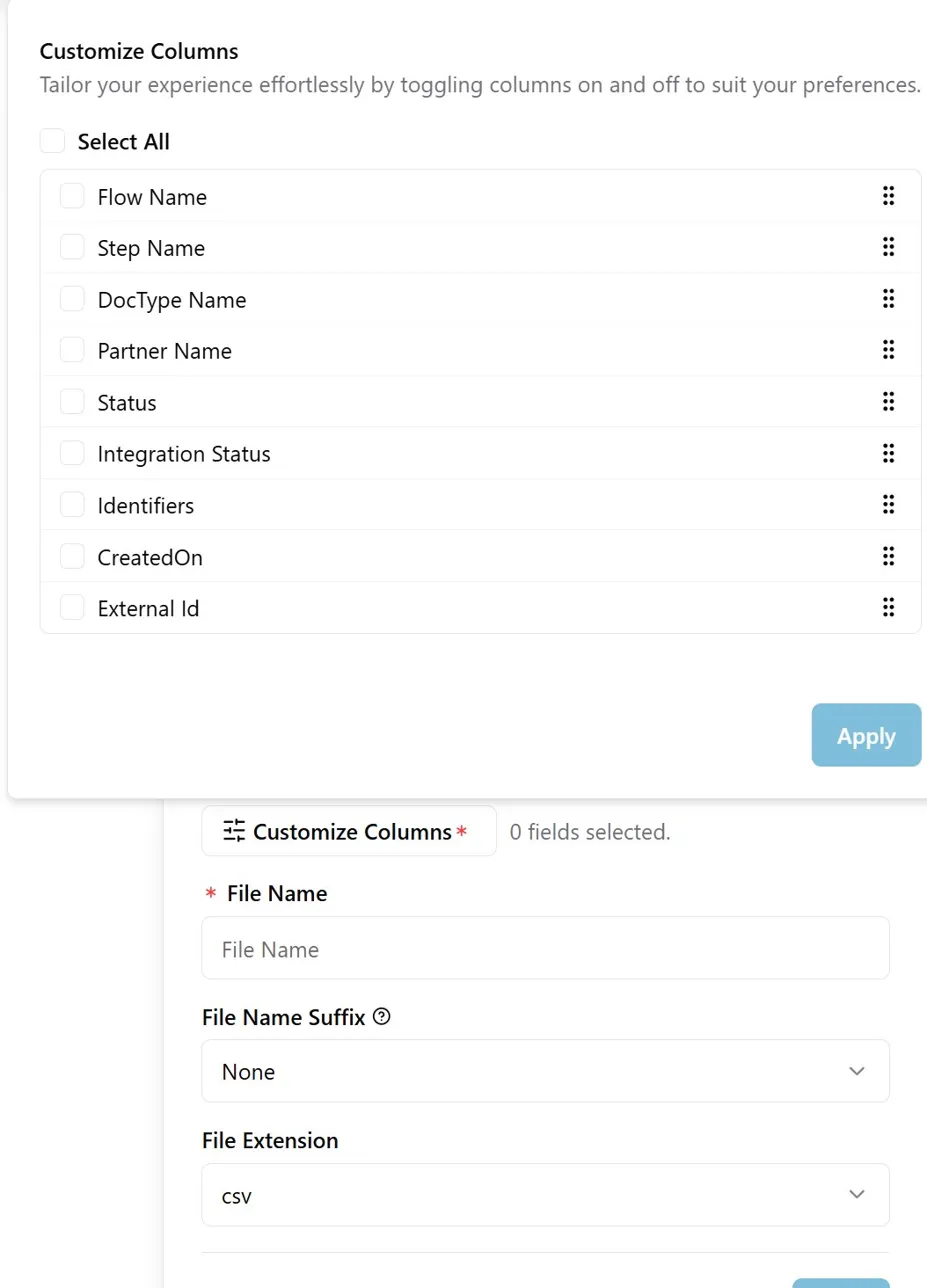
Click Customize Columns to select which data fields appear in your report. Toggle on the columns you want, then click Apply.
Available columns include:
Flow Name
Step Name
DocType Name
Partner Name
Status
Integration Status
Identifiers
CreatedOn
External Id
Tip: Use Select All at the top to quickly enable every column, then uncheck the ones you don't need.
STEP 4
Set the File Name & Format
Configure how the report file will be named and formatted before it is emailed to recipients:
File Name (Required) — Enter a base name for the exported report file.
File Name Suffix — Optionally append a date or timestamp to make each file unique (options: None, Date, DateTime).
File Extension — Choose the output format. Defaults to CSV.
Tip: Adding a Date or DateTime suffix is recommended so each delivery has a unique, traceable filename.
Was this article helpful?
That’s Great!
Thank you for your feedback
Sorry! We couldn't be helpful
Thank you for your feedback
Feedback sent
We appreciate your effort and will try to fix the article