What is a Map?
Definition
A Map (also referred to as an EDI Map or translation map) is the set of rules that defines how data is transformed from one format or structure to another.
Simplify supports any-format-to-any-format translation — meaning a map can be built between EDI, XML, JSON, fixed-width, delimited, or any other supported file format in any combination.
This document provides an overview of the Maps page and Map Configuration. For detailed guidance on building map links and writing functions, refer to the FreshDesk articles listed at the end of this document.
Account Level & Inheritance
Maps follow the Simplify hierarchy: Host → Reseller → Customer → Partner. A map can be created at the Reseller, Customer, or Partner level. Lower-level accounts can reuse (clone) maps from a higher level and customize them for their specific needs. |
- Reseller-level maps — available as base maps for all Customers under that Reseller.
- Customer-level maps — created or cloned by a Customer for their own use.
- Partner-level maps — customized versions of a map cloned specifically for a trading partner.
- When a trading partner with a customized map is added to a Flow, Simplify automatically uses that partner's map instead of the default system map.
Where to Find It
Navigate to: Advance Config → Maps in the left navigation menu.
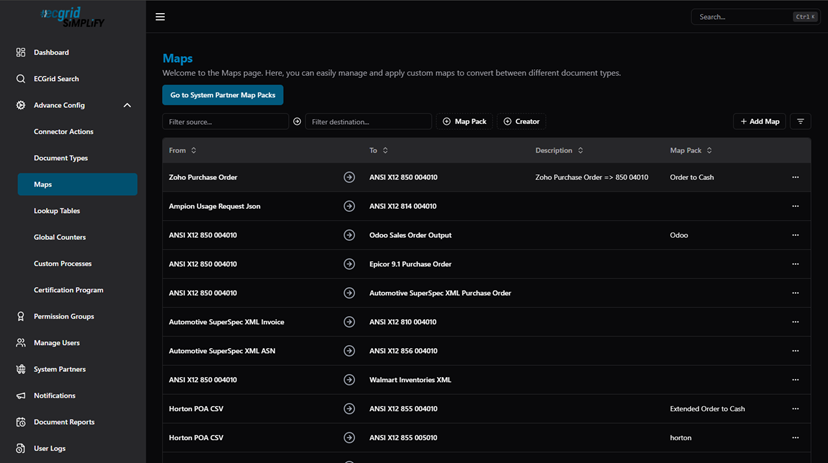
Maps — list view (From, To, Description, Map Pack columns) with Go to System Partner Map Packs button
Filter maps by source document (Filter source...), destination document (Filter destination...), Map Pack group, or Creator:
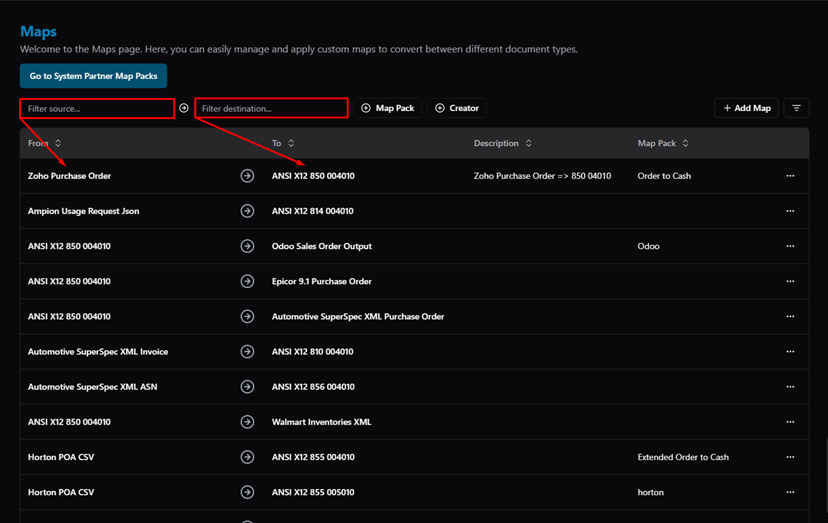
Maps — Filter source and Filter destination search boxes
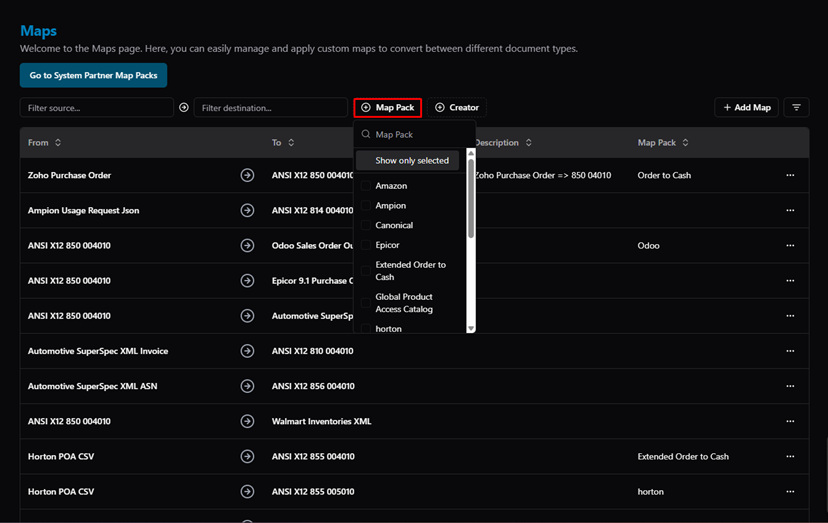
Maps — Map Pack filter dropdown (Amazon, Ampion, Canonical, Epicor, etc.)
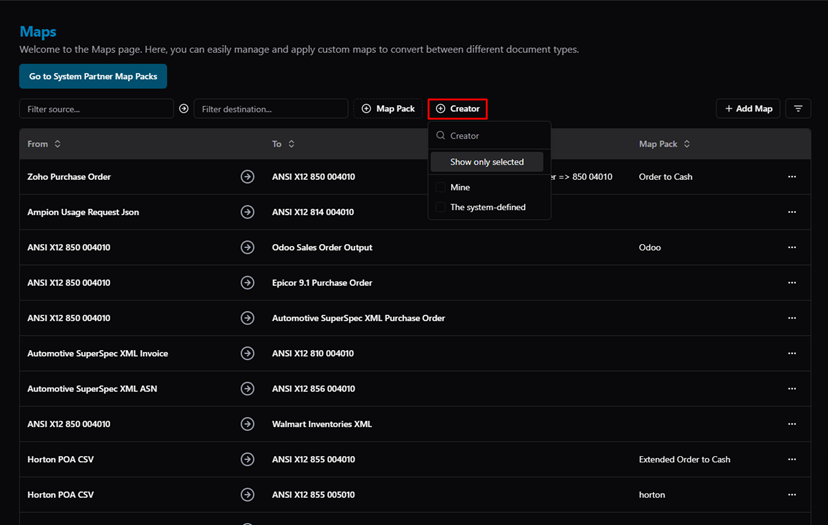
Maps — Creator filter dropdown (Mine / The system-defined)
Click ··· on any map row to access Config or Export:
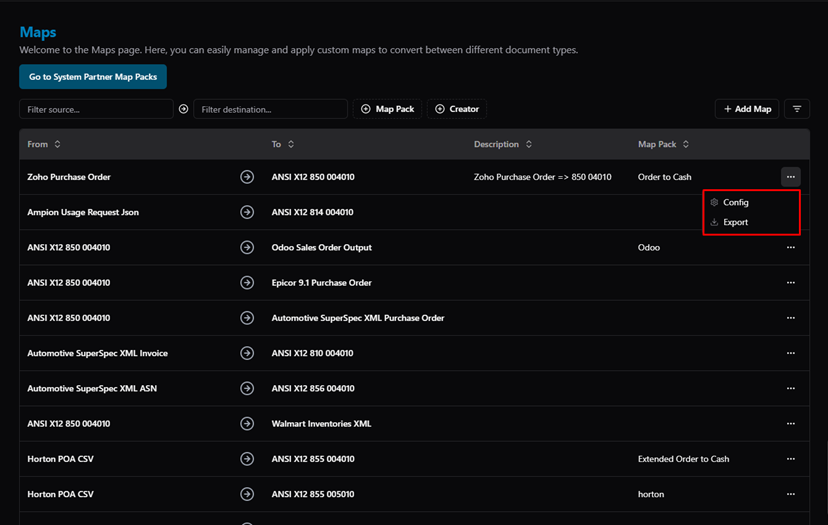
Maps — actions menu (Config / Export)
Map Configuration Page
Clicking Config opens the Map Configuration page. The left panel shows the source document structure; the right panel shows the destination. The middle column (Adv C#) is where mapping links and functions are defined.
Use the "Select a partner to show their own function" dropdown to preview how the map looks for a specific trading partner:
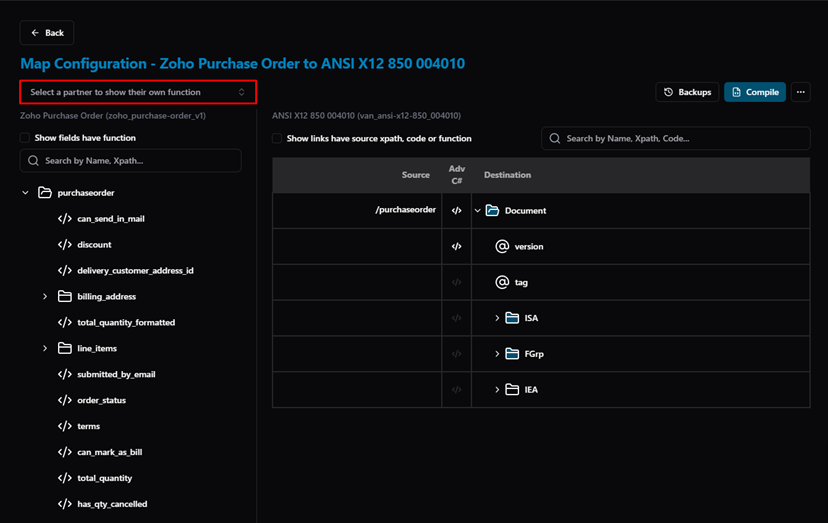
Map Configuration — Select a partner dropdown (highlighted)
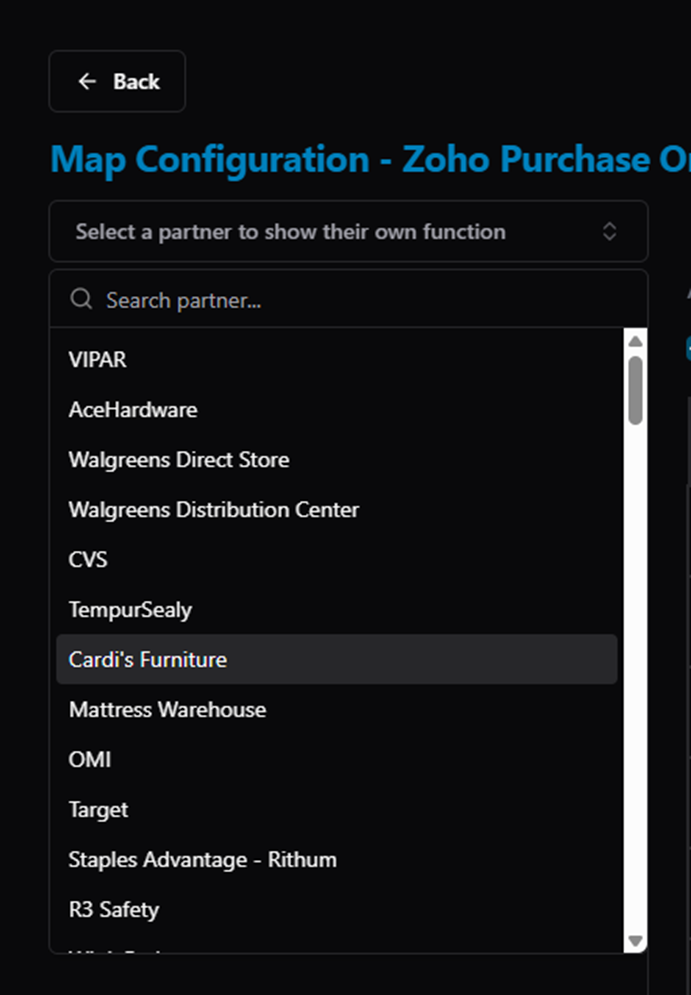
Map Configuration — partner list for filtering partner-specific functions
Enable the filter checkboxes to highlight fields and links that have functions or xpath configured:
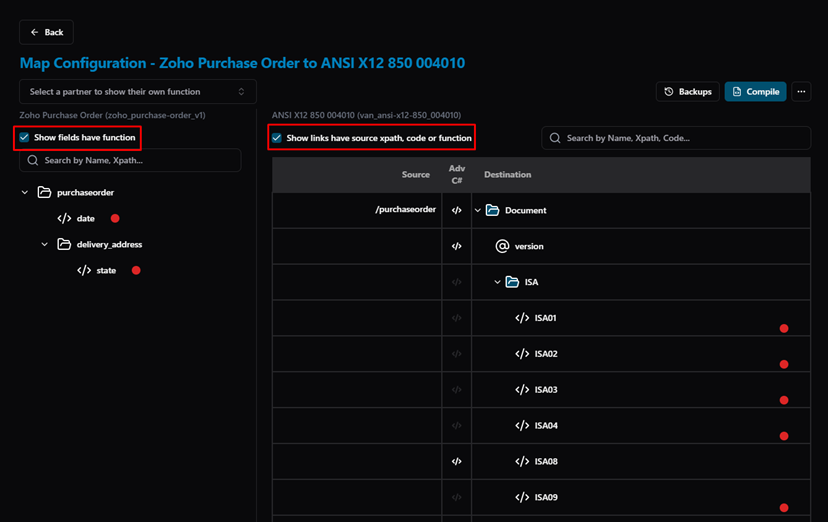
Map Configuration — Show fields have function (left) and Show links have source xpath, code or function (right) — red dots mark fields with functions
Use the search boxes on each side to quickly locate a field by Name or Xpath:
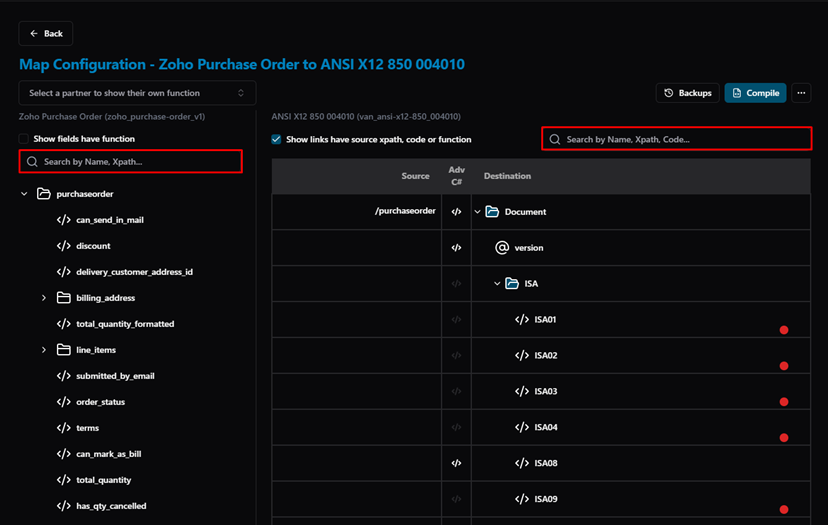
Map Configuration — Search by Name, Xpath on source (left) and destination (right)
How to Customize a Map (Clone)
System-defined maps cannot be edited directly. To customize a map, you must first Clone it or Import it:
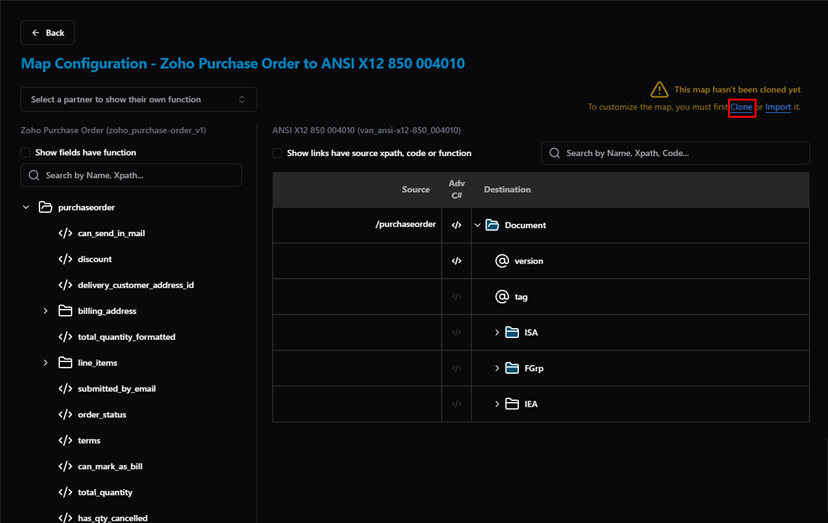
Map Configuration — "This map hasn't been cloned yet" warning with Clone and Import links
Click Clone and confirm to create an editable copy:
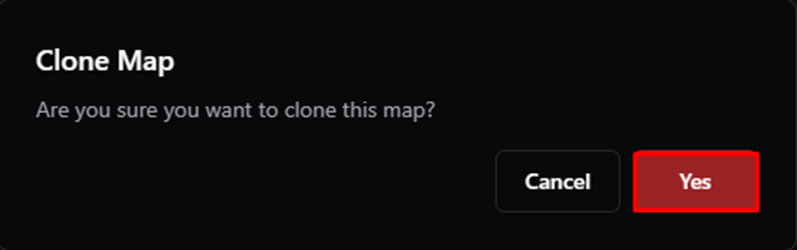
Clone Map confirmation dialog
After cloning, the map is now editable. A warning reminds you to Compile the map before using it in a Flow:
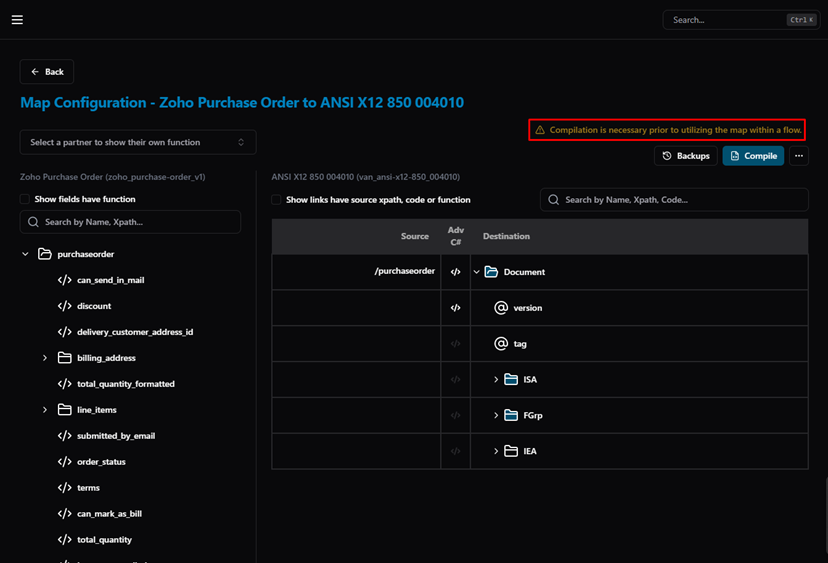
Map Configuration — after cloning: Compilation is necessary warning, Backups and Compile buttons visible
How to Import Map Links
Instead of cloning, you can also import links from an existing map or a CSV file by clicking Import:
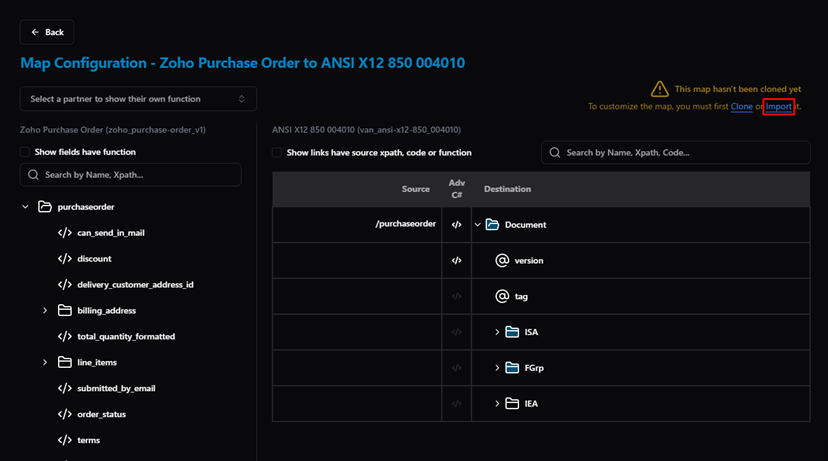
Map Configuration — Import link highlighted next to Clone
Import from map — select an existing map whose links will be copied over. XPaths must match for links to be automatically imported:
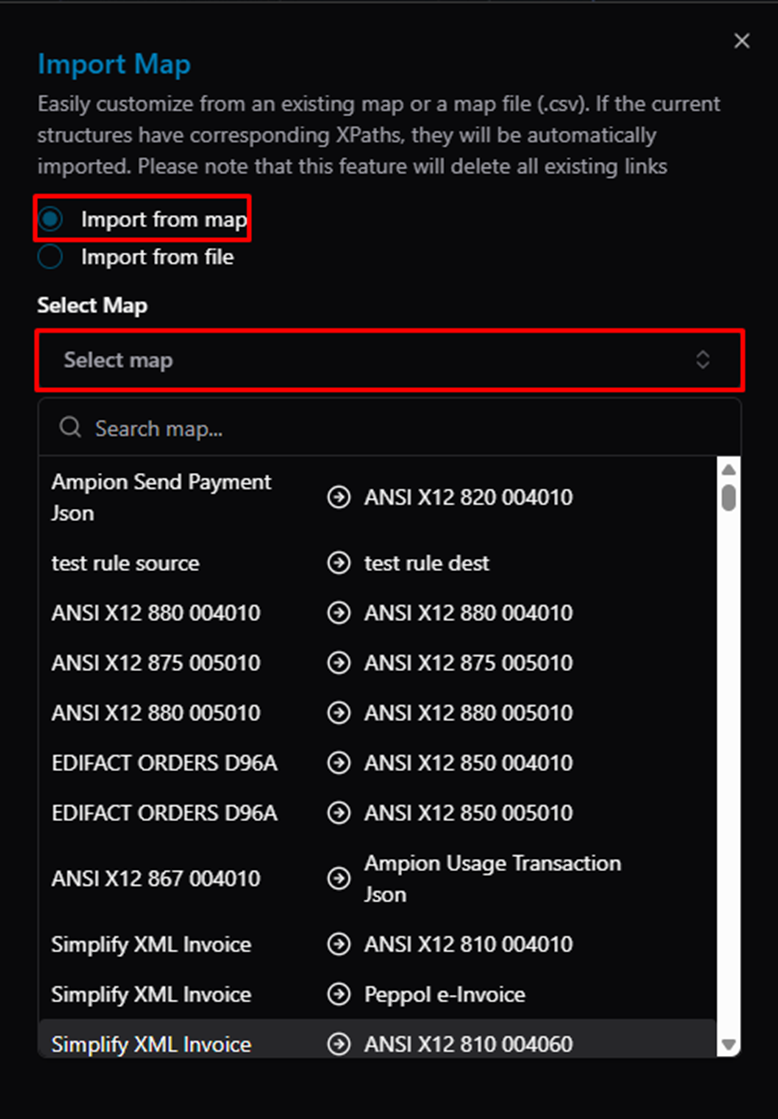
Import Map dialog — Import from map option with Select Map dropdown
Import from file — upload a CSV file exported from another map:
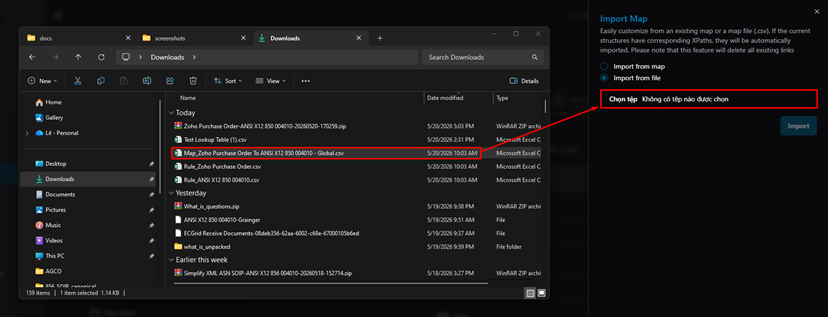
Import Map dialog — Import from file option with file browser open
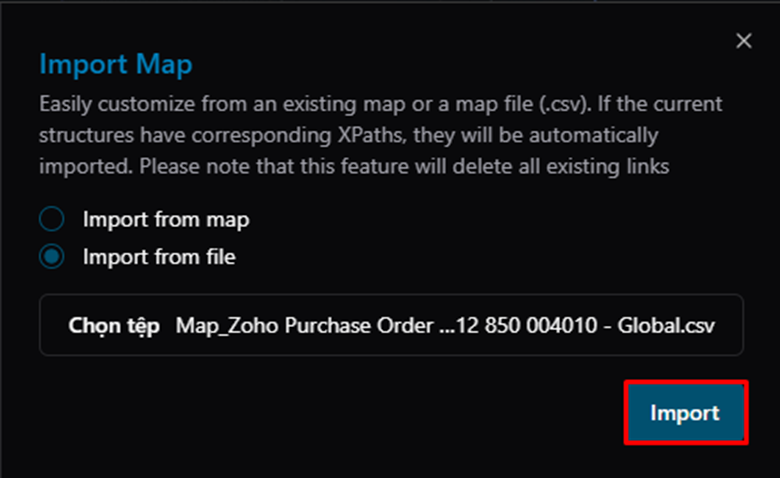
Import Map dialog — file selected, click Import to confirm
How to Compile a Map
After making changes, click Compile to build the map so it can be used in a Flow. The system will show a warning until the map is compiled:
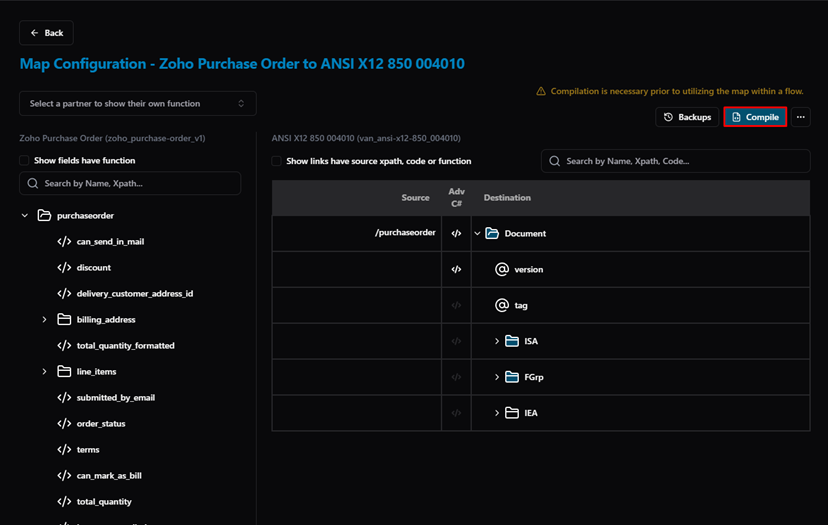
Map Configuration — Compile button highlighted
Map Backups
Each time you compile, Simplify saves a backup version. Click Backups to view previous versions and roll back if needed:
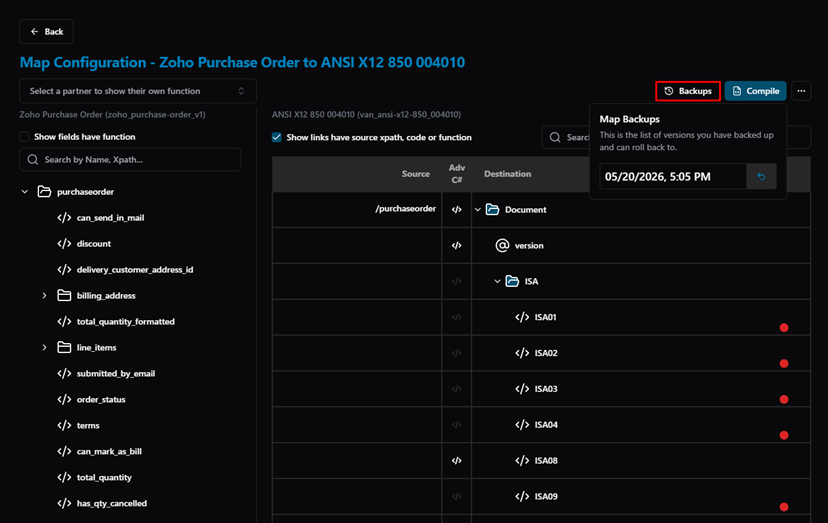
Map Configuration — Backups panel showing saved versions with rollback option
Additional Options
Click ··· in the top-right of the Map Configuration page to access Import, Test, and Delete:
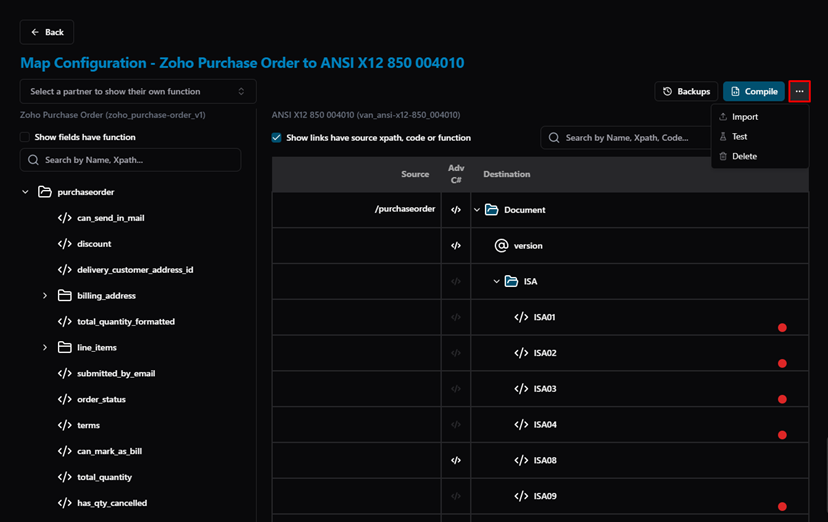
Map Configuration — ··· menu (Import / Test / Delete)
- Import — import links from another map or CSV file (same as the Import option on non-cloned maps).
- Test — run a test document through the map to verify the output.
- Delete — permanently remove this map.
Note
This document provides a general overview of what a Map is and how to navigate the Maps page. For detailed instructions on building map links, writing functions, and configuring field-level mappings, refer to the FreshDesk articles below. |
Related Articles
For more details, refer to the following articles in the Knowledge Center:
Was this article helpful?
That’s Great!
Thank you for your feedback
Sorry! We couldn't be helpful
Thank you for your feedback
Feedback sent
We appreciate your effort and will try to fix the article