What is a Flow?
Definition
A Flow is a configured workflow in Simplify that defines how files are processed in the system. Each flow has a name, description, and optional custom email addresses for error notifications, and can be enabled or disabled to control whether it is active.
Account Level
Flows are created and managed at the Customer level. You must be logged in as a Customer account to create, configure, and run flows. Resellers set up the account; Customers operate within it. |
Key Characteristics
- A flow must contain more than one step — including its Trigger — before it can be enabled.
- Trading partners can be assigned to a flow so the system automatically applies any partner-specific maps or configurations.
- When a trading partner is added to a flow, the system automatically pulls in that partner's customized map (if one exists) instead of the default system map.
- Example: a flow with a Trigger of EDI 850 v4010 and an Action of Simplify Purchase Order XML will automatically apply the partner's map once the partner is assigned.
Where to Find It
Flows require a Customer account. From the Reseller account, go to Manage Users → click ··· → Login as User to impersonate a Customer:
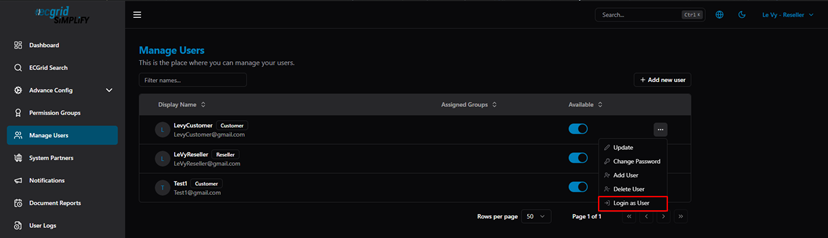
Manage Users — Login as User to access a Customer account
Once logged in as a Customer, navigate to My Flows → Flows:
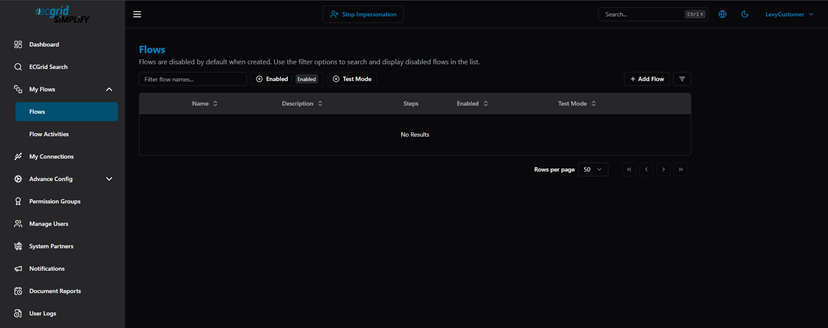
Flows list — Customer account (Stop Impersonation banner visible)
Use the filter bar to search and filter flows:
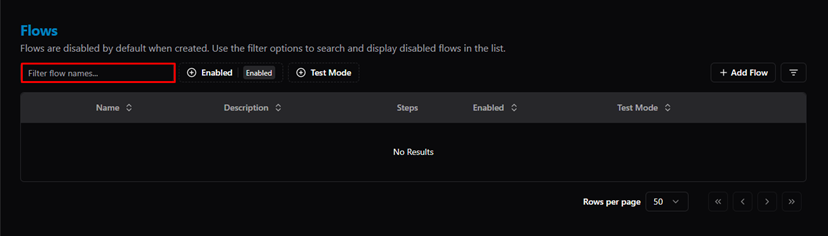
Flows — Filter by name
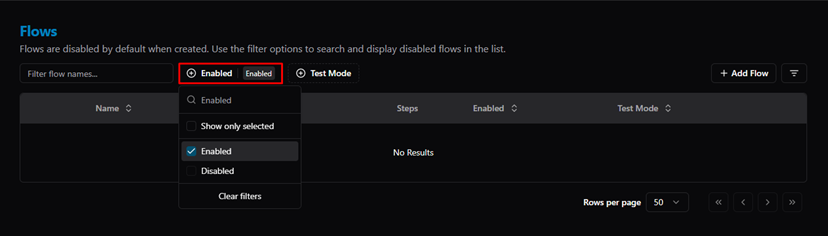
Flows — Filter by Enabled / Disabled status
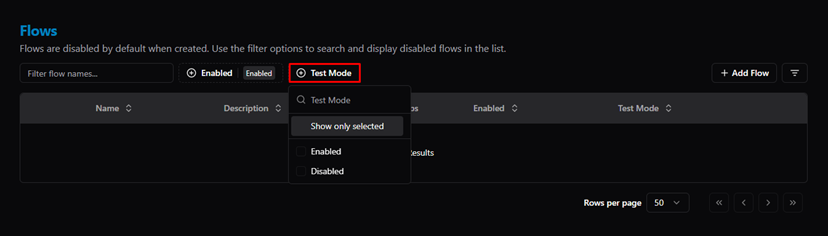
Flows — Filter by Test Mode
How to Create a Flow
Step 1 — Click + Add Flow to create a new flow:
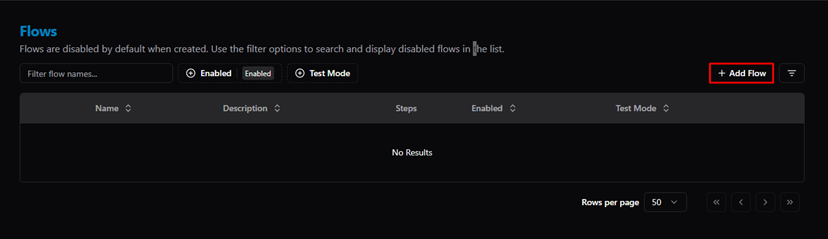
Flows — + Add Flow button
Step 2 — Enter a Name and optional Description. Note: you must set up partners first if the flow is partner-specific:
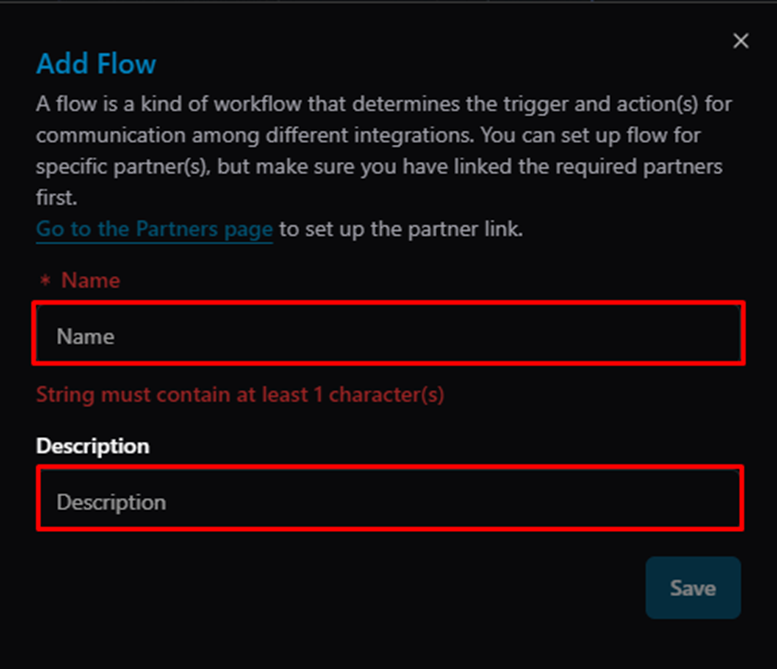
Add Flow dialog — Name field (required)
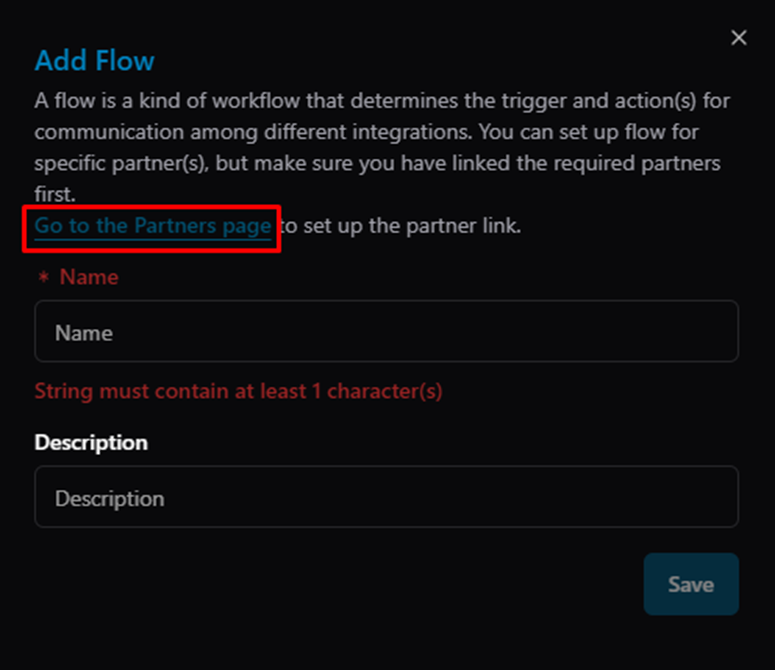
Add Flow dialog — Go to Partners page link
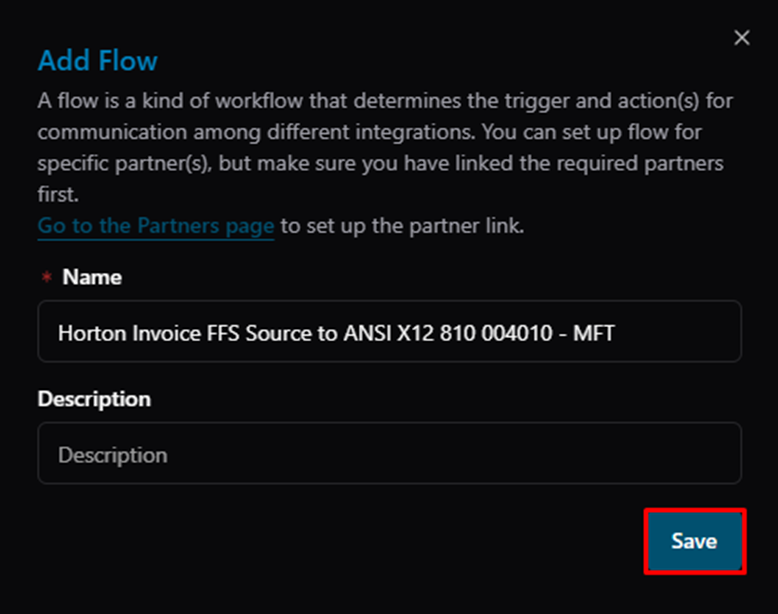
Add Flow dialog — filled Name + Save button
Step 3 — After saving, the Flow Configuration page opens. The flow is disabled by default. Click + Add Trigger to start:
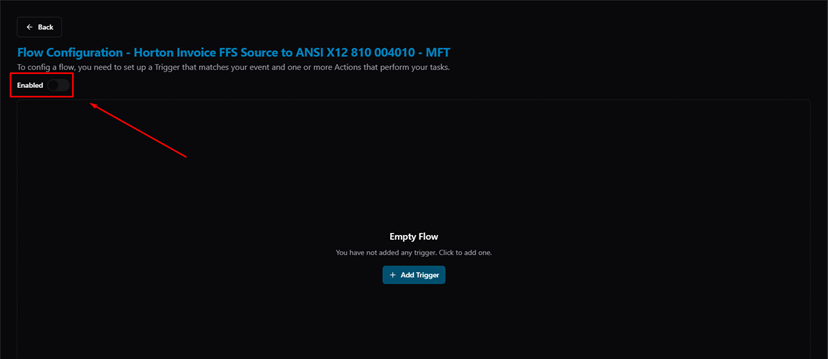
Flow Configuration — new empty flow, Enabled toggle OFF
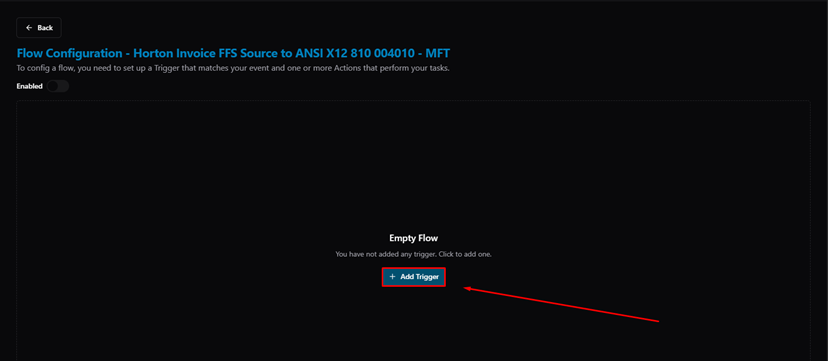
Flow Configuration — + Add Trigger button
Step 4 — Configure the Trigger step: select Action, Document Type, and Connection, then click Next:
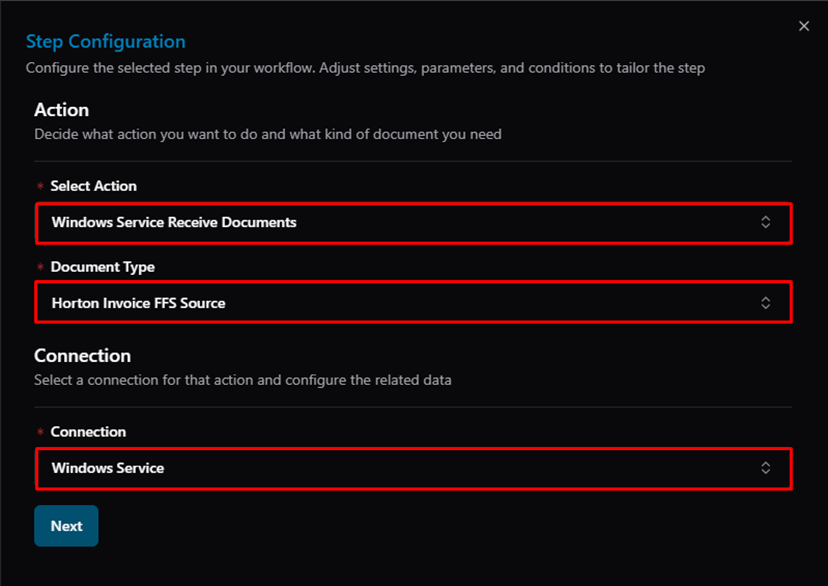
Step Configuration — Select Action, Document Type, Connection
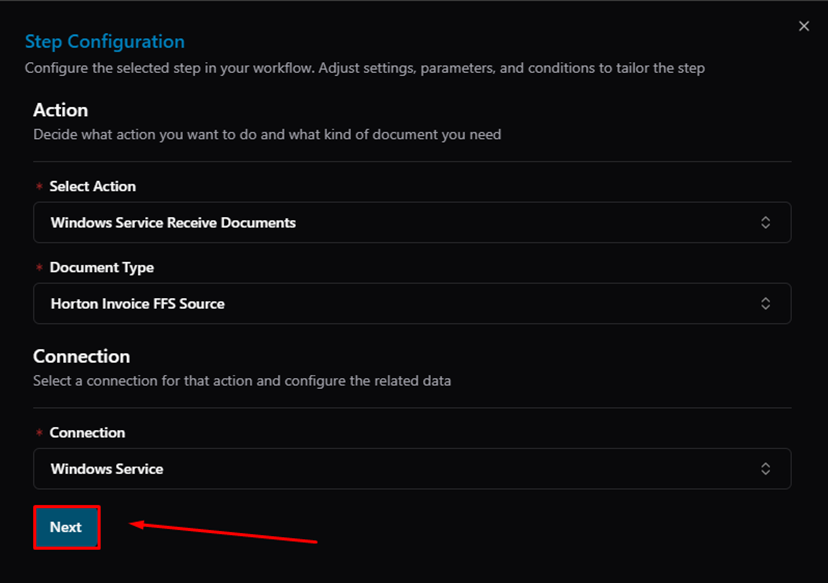
Step Configuration — Next button
Step 5 — Setup Condition (optional). Click Next to skip or add conditions first:
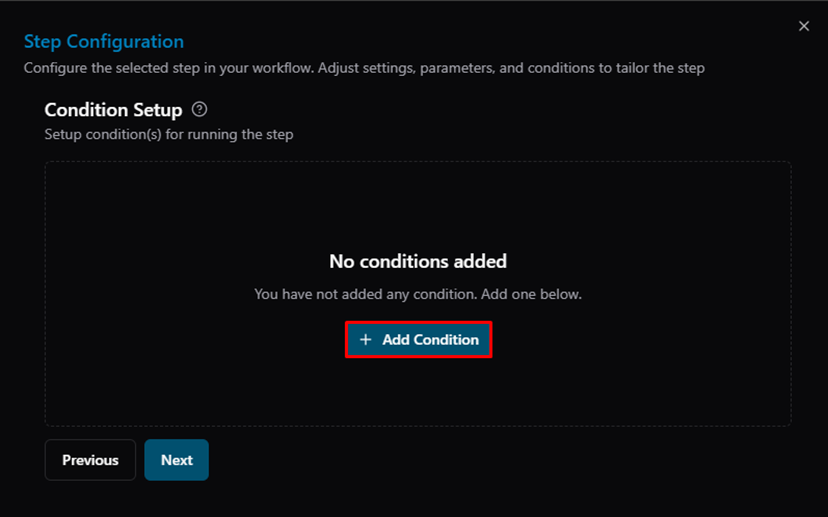
Step Configuration — Condition Setup, + Add Condition
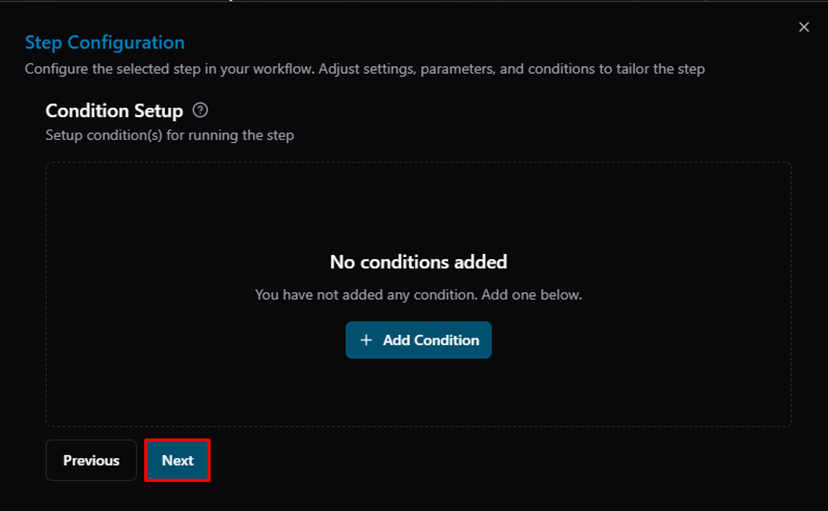
Step Configuration — Condition Setup, Next button
Step 6 — Partner Setup: link trading partners to this step (optional). Click Next to continue:
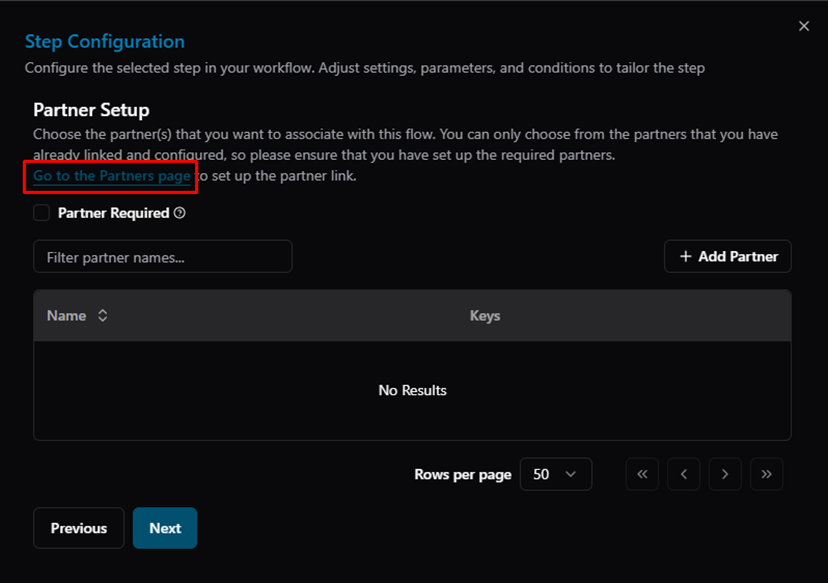
Step Configuration — Partner Setup, Go to Partners page link
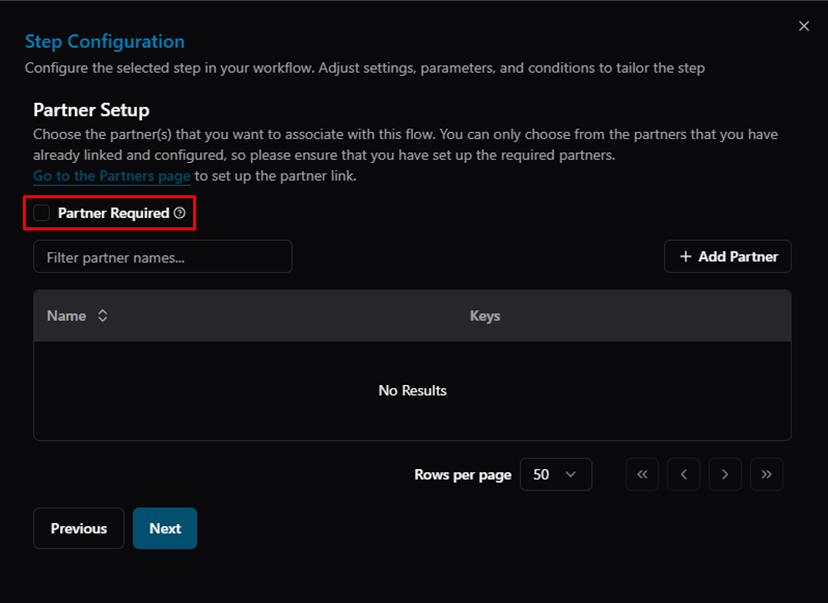
Step Configuration — Partner Required checkbox
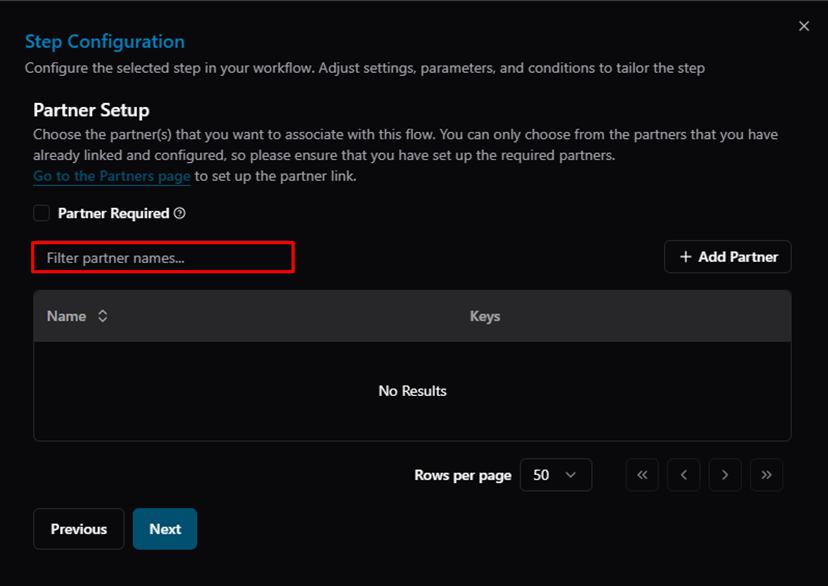
Step Configuration — Filter partner names
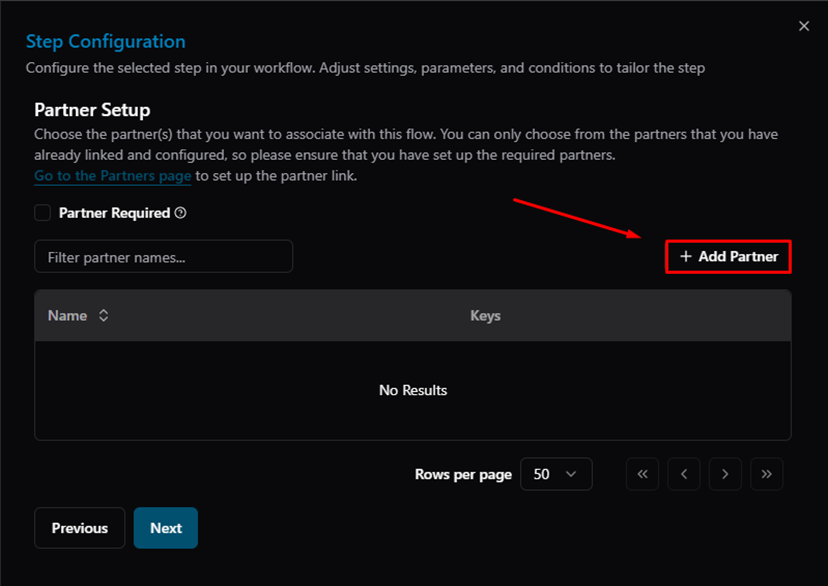
Step Configuration — + Add Partner button
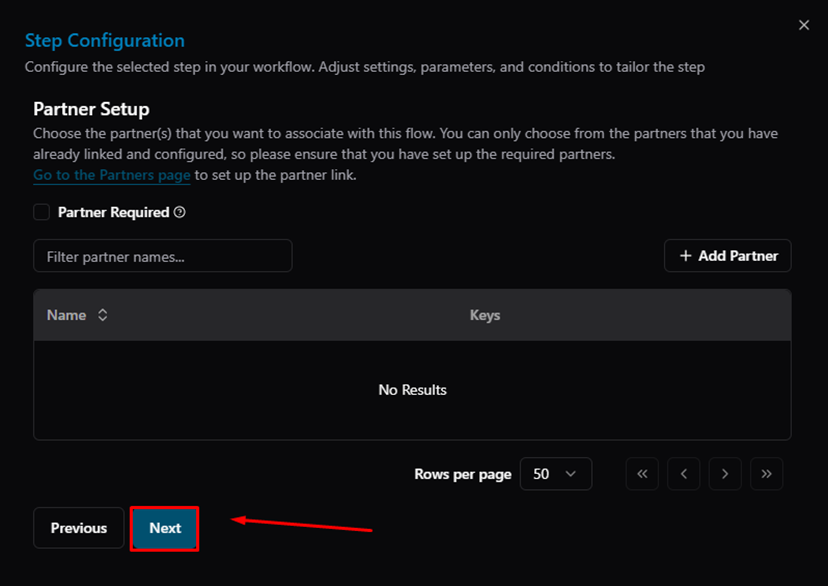
Step Configuration — Partner Setup, Next button
Step 7 — Acknowledgment Setup. Click Finish to complete the Trigger:
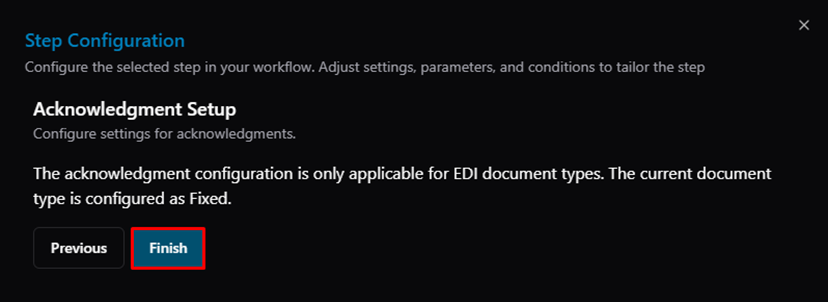
Step Configuration — Acknowledgment Setup, Finish button
Step 8 — The Trigger is now added. Click the + icon on the Trigger node to add an Action step:
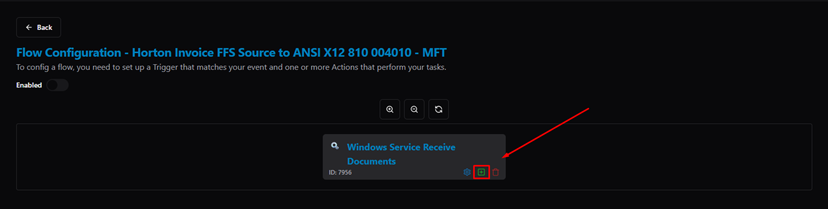
Flow Configuration — Trigger added, + button to add Action
Step 9 — Configure the Action step (same wizard: Action → Condition → Partners → Finish):
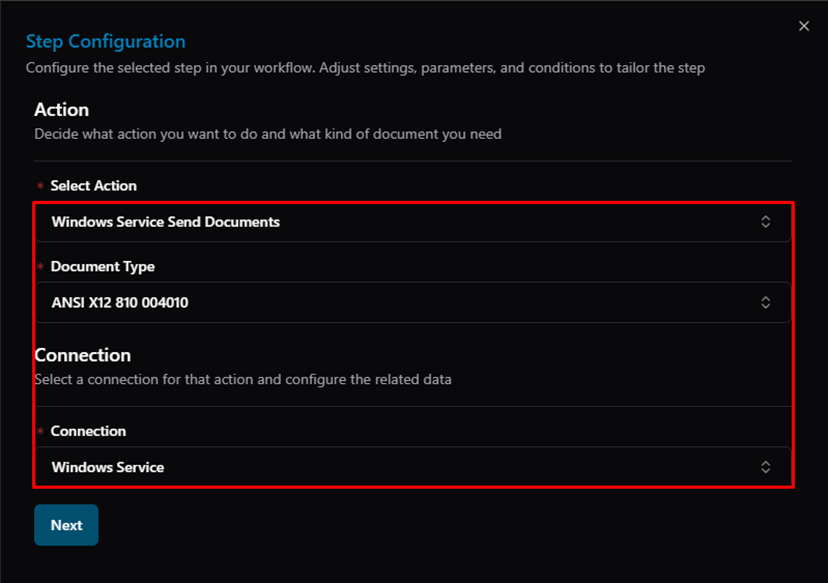
Action Step Configuration — Select Action, Document Type, Connection
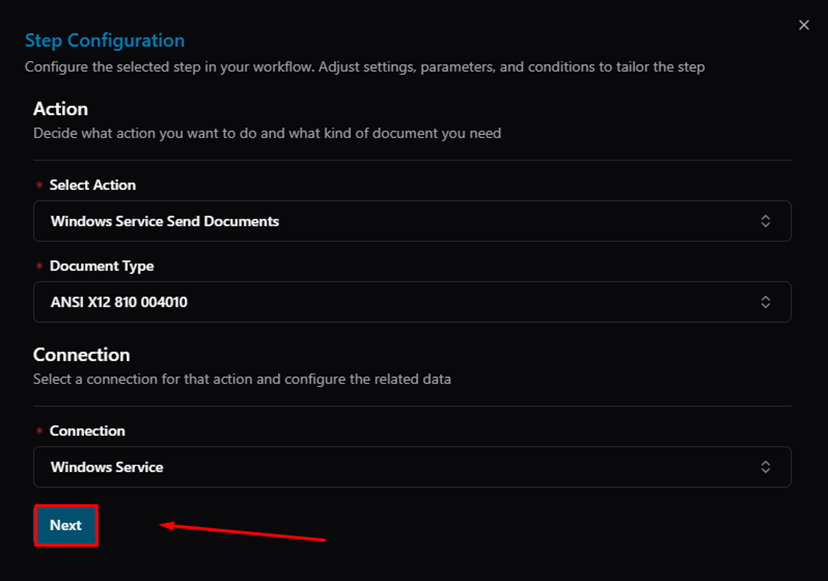
Action Step Configuration — Next button
Step 10 — Once both steps are configured, enable the flow using the Enabled toggle:
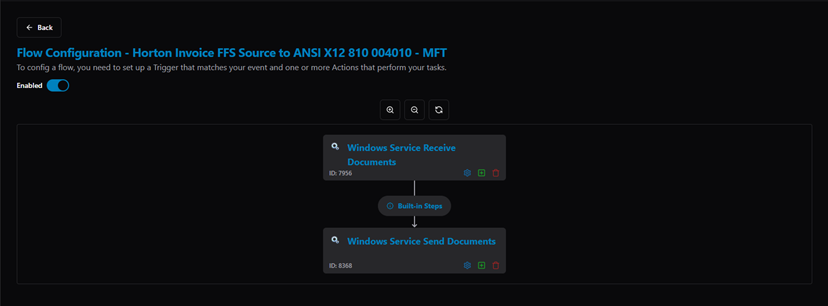
Flow Configuration — complete flow (Trigger → Built-in Steps → Action), Enabled ON
Back on the Flows list, click ··· to Edit, Config, Delete, or Clone a flow:
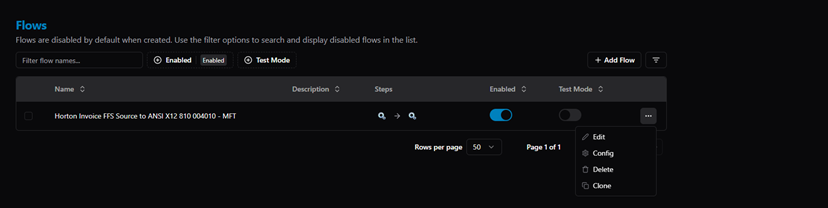
Flows list — flow enabled, actions menu (Edit / Config / Delete / Clone)
Related Articles
For more details, refer to the following articles in the Knowledge Center:
Was this article helpful?
That’s Great!
Thank you for your feedback
Sorry! We couldn't be helpful
Thank you for your feedback
Feedback sent
We appreciate your effort and will try to fix the article